> ## Documentation Index
> Fetch the complete documentation index at: https://docs.coderabbit.ai/llms.txt
> Use this file to discover all available pages before exploring further.
# Connections
> Connect external services once, then control where CodeRabbit can use each saved connection.
Connections let CodeRabbit securely use external services such as issue trackers, documentation systems, analytics tools, and custom MCP servers. Configure a service once, then use [scopes](/connections/scopes) to control where it is available.
 ## How Connections works
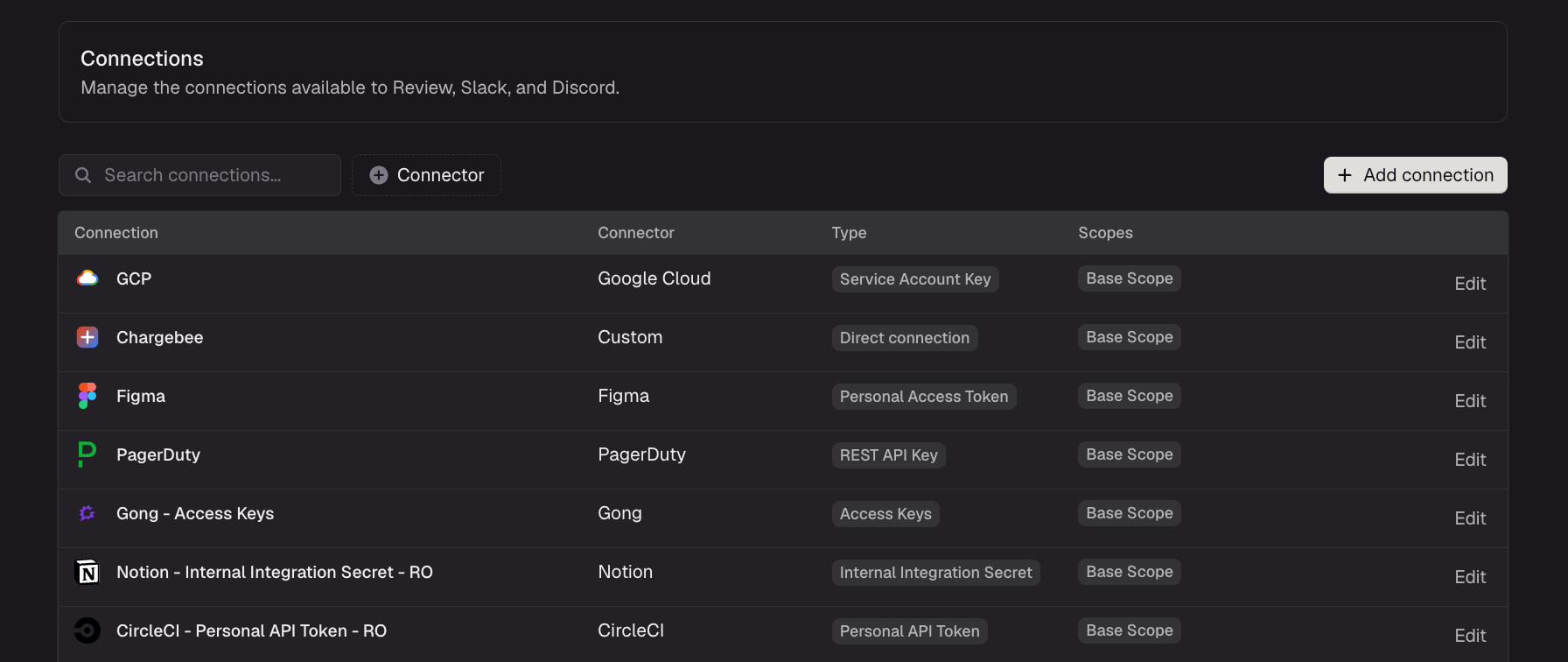
A **connector** is a supported service or connection method, such as Linear, Notion, Google Drive, or a custom MCP server. A **connection** is a configured instance of a connector, including its credentials and settings.
Your organization can save multiple connections for the same connector. For example, you might save one Linear connection for Engineering and another for Product. Give each connection a recognizable name so administrators can select the right account when configuring scopes.
## How Connections works
A **connector** is a supported service or connection method, such as Linear, Notion, Google Drive, or a custom MCP server. A **connection** is a configured instance of a connector, including its credentials and settings.
Your organization can save multiple connections for the same connector. For example, you might save one Linear connection for Engineering and another for Product. Give each connection a recognizable name so administrators can select the right account when configuring scopes.
 Connections are configured centrally on the [Connections](https://app.coderabbit.ai/connections) page. CodeRabbit Review, Agent for Slack, and Agent for Discord manage scopes separately because each product works in different contexts, such as repositories, channels, or conversations.
## Find and understand connections
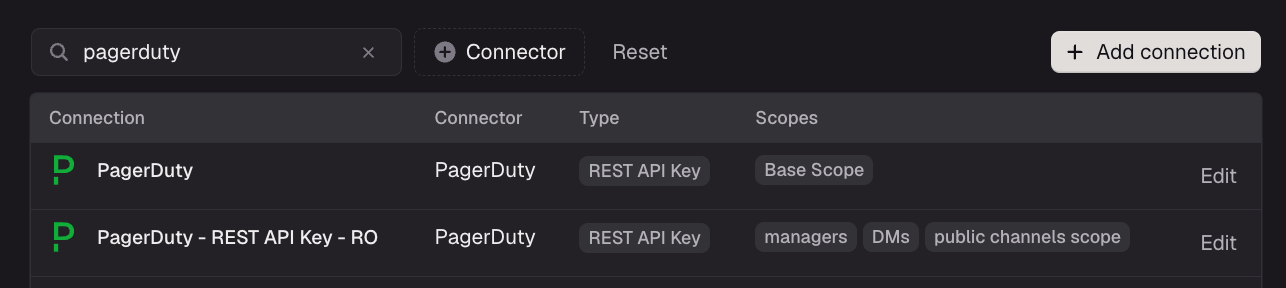
Use the search field to find a connection by its name, connector, or assigned scope. Use the available filters to narrow the table by the attributes shown in your organization, such as connector, authentication type, or product availability.
The Connections table and detail view use these labels:
| Label | Meaning |
| ------------------- | ------------------------------------------------------------------------------------------------------------------------------------------------------------------------------------ |
| Connection name | The administrator-defined name for a saved account or server. Use names such as `Engineering Linear` or `Company Notion` to distinguish multiple connections for the same connector. |
| Connector | The service or connection method, such as Linear, Google Drive, or a custom MCP server. |
| Authentication type | How CodeRabbit authenticates to the service. The available types depend on the connector and connection method. |
| Scope labels | The Review, Slack, or Discord scopes that currently use the connection. |
Open a connection or review its scope labels to see where it is currently available. A connection can appear in more than one product or scope when its connection method supports those products.
## Add a connection
Select the organization you want to configure, then open [Connections](https://app.coderabbit.ai/connections) in the CodeRabbit web app.
Select **Add connection** to open the connector catalog.
Search or browse for the external service or connection method you want to configure, then select it.
Connections are configured centrally on the [Connections](https://app.coderabbit.ai/connections) page. CodeRabbit Review, Agent for Slack, and Agent for Discord manage scopes separately because each product works in different contexts, such as repositories, channels, or conversations.
## Find and understand connections
Use the search field to find a connection by its name, connector, or assigned scope. Use the available filters to narrow the table by the attributes shown in your organization, such as connector, authentication type, or product availability.
The Connections table and detail view use these labels:
| Label | Meaning |
| ------------------- | ------------------------------------------------------------------------------------------------------------------------------------------------------------------------------------ |
| Connection name | The administrator-defined name for a saved account or server. Use names such as `Engineering Linear` or `Company Notion` to distinguish multiple connections for the same connector. |
| Connector | The service or connection method, such as Linear, Google Drive, or a custom MCP server. |
| Authentication type | How CodeRabbit authenticates to the service. The available types depend on the connector and connection method. |
| Scope labels | The Review, Slack, or Discord scopes that currently use the connection. |
Open a connection or review its scope labels to see where it is currently available. A connection can appear in more than one product or scope when its connection method supports those products.
## Add a connection
Select the organization you want to configure, then open [Connections](https://app.coderabbit.ai/connections) in the CodeRabbit web app.
Select **Add connection** to open the connector catalog.
Search or browse for the external service or connection method you want to configure, then select it.
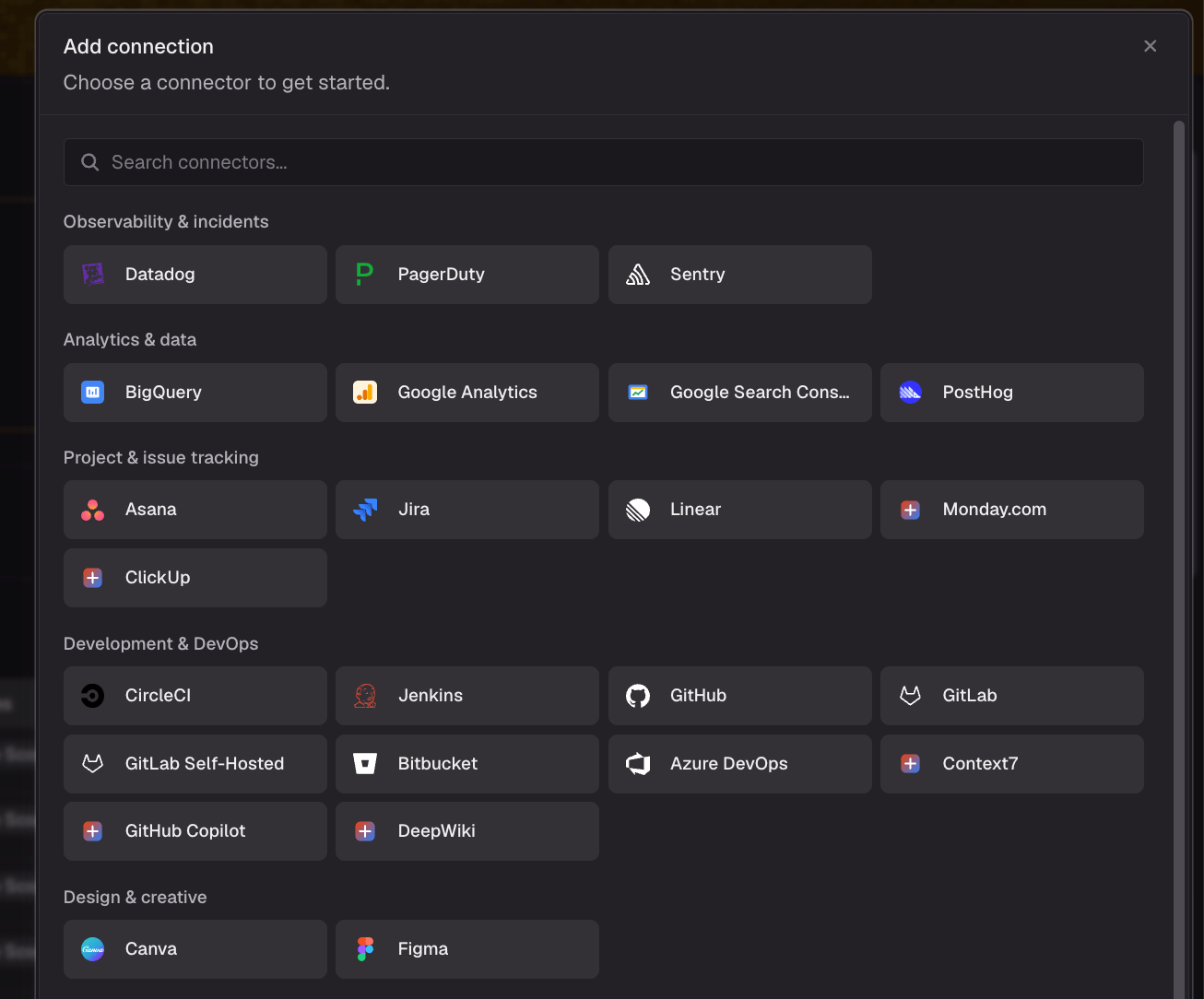 Choose one of the methods available for that connector. Authentication methods vary by connector.
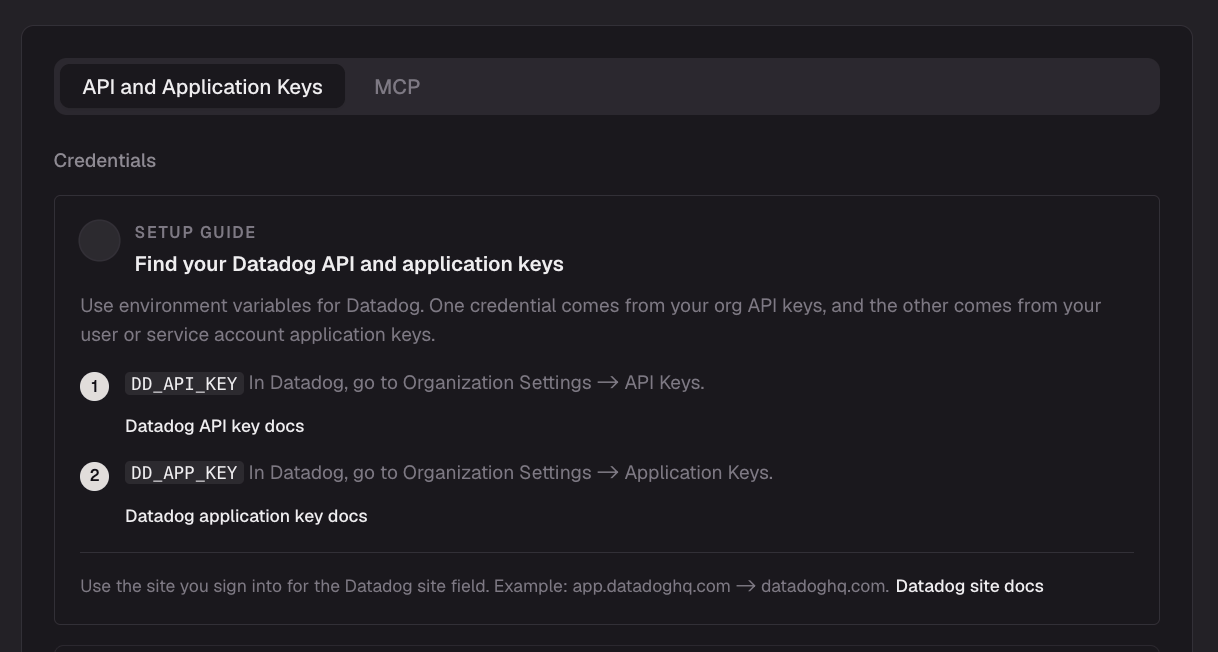 Enter a recognizable name that identifies the account, workspace, or server. This is especially useful when your organization saves multiple connections for the same connector.
Complete OAuth or enter the requested credentials. The fields shown depend on the selected connector and connection method.
Review any service-specific access requested by the provider and confirm that it matches how your organization intends to use the connection.
Optionally add the connection to the relevant Review, Slack, or Discord **Base Scope**. You can also assign it later from the relevant Scopes page.
Select **Save** to add the configured connection to your organization.
Return to the Connections table and confirm that the new connection appears with the expected name, connector, authentication type, availability, and scope labels.
Saving a connection makes it available for scope selection. CodeRabbit cannot use it until the relevant product has a Base Scope that permits access. For details, see [How the Base Scope works](/connections/scopes#how-the-base-scope-works).
## Direct connections and MCP connections
A **direct connection** uses a guided integration provided by CodeRabbit. An **MCP connection** connects CodeRabbit to an MCP-compatible server. Both are saved connections that administrators can name, manage, and assign to supported scopes.
The connection form displays the authentication fields required by the selected method. Depending on the connector, this might be an OAuth flow, an API key, server credentials, or other service-specific settings.
Product availability can differ between connection methods. When a method supports only one product area, the interface displays **Currently available in Review only** or **Currently available in Slack and Discord only**. Check this message while choosing a method; being a direct or MCP connection does not by itself determine which products can use it.
When an existing connection is available only in Review, the interface may offer an option to enable it for CodeRabbit Agent without entering the credentials again. Repeating this action reuses the existing Agent connection instead of creating a duplicate.
For requirements that apply to MCP-compatible servers, see [MCP servers](/connections/mcp-servers).
### GitLab token-defined repository access
For a GitLab-connected SSO workspace, the selected GitLab token defines the access boundary for each Slack scope. CodeRabbit Agent discovers every visible, non-archived top-level group and the repositories in those groups and their subgroups. Projects in personal namespaces are excluded because discovery starts at the GitLab groups endpoint.
GitLab groups and repositories appear as included, read-only context without checkboxes. This differs from GitHub, where administrators select individual repositories. A project visible to the GitLab token can enter CodeRabbit Agent's repository context even when CodeRabbit Review is not installed for that project.
During setup, choose whether to inherit the GitLab token used by CodeRabbit Review or define a separate GitLab token for CodeRabbit Agent. After a separate GitLab token is configured, you can keep it or replace it.
## Manage a saved connection
Open a saved connection to review its settings and the scopes that use it. Depending on the connector and your permissions, you can:
* **Edit** its name or connection settings.
* **Reconnect** it when OAuth expires, provider authorization changes, or CodeRabbit asks you to authorize it again.
* **Remove it from a scope** to prevent use in that context without deleting the saved connection.
* **Delete the connection** when the organization no longer needs it.
Deleting a connection removes it from the organization. Any scope that references it will no longer be able to use it. Review the connection's scope labels before deleting it.
## Permissions and availability
Organization administrators can add, edit, reconnect, and delete connections. Billing-only administrators cannot manage connections or scopes. Slack and Discord connections also depend on the corresponding agent installation, subscription, and workspace-management access.
Some connection methods are available only in Review or only in Slack and Discord. The connection form displays the current availability before you save.
## What's next
Configure default and repository-specific connection access for pull request reviews.
Configure connection access for the contexts offered by CodeRabbit Agent for Slack.
Configure connection access for the contexts offered by CodeRabbit Agent for Discord.
Enter a recognizable name that identifies the account, workspace, or server. This is especially useful when your organization saves multiple connections for the same connector.
Complete OAuth or enter the requested credentials. The fields shown depend on the selected connector and connection method.
Review any service-specific access requested by the provider and confirm that it matches how your organization intends to use the connection.
Optionally add the connection to the relevant Review, Slack, or Discord **Base Scope**. You can also assign it later from the relevant Scopes page.
Select **Save** to add the configured connection to your organization.
Return to the Connections table and confirm that the new connection appears with the expected name, connector, authentication type, availability, and scope labels.
Saving a connection makes it available for scope selection. CodeRabbit cannot use it until the relevant product has a Base Scope that permits access. For details, see [How the Base Scope works](/connections/scopes#how-the-base-scope-works).
## Direct connections and MCP connections
A **direct connection** uses a guided integration provided by CodeRabbit. An **MCP connection** connects CodeRabbit to an MCP-compatible server. Both are saved connections that administrators can name, manage, and assign to supported scopes.
The connection form displays the authentication fields required by the selected method. Depending on the connector, this might be an OAuth flow, an API key, server credentials, or other service-specific settings.
Product availability can differ between connection methods. When a method supports only one product area, the interface displays **Currently available in Review only** or **Currently available in Slack and Discord only**. Check this message while choosing a method; being a direct or MCP connection does not by itself determine which products can use it.
When an existing connection is available only in Review, the interface may offer an option to enable it for CodeRabbit Agent without entering the credentials again. Repeating this action reuses the existing Agent connection instead of creating a duplicate.
For requirements that apply to MCP-compatible servers, see [MCP servers](/connections/mcp-servers).
### GitLab token-defined repository access
For a GitLab-connected SSO workspace, the selected GitLab token defines the access boundary for each Slack scope. CodeRabbit Agent discovers every visible, non-archived top-level group and the repositories in those groups and their subgroups. Projects in personal namespaces are excluded because discovery starts at the GitLab groups endpoint.
GitLab groups and repositories appear as included, read-only context without checkboxes. This differs from GitHub, where administrators select individual repositories. A project visible to the GitLab token can enter CodeRabbit Agent's repository context even when CodeRabbit Review is not installed for that project.
During setup, choose whether to inherit the GitLab token used by CodeRabbit Review or define a separate GitLab token for CodeRabbit Agent. After a separate GitLab token is configured, you can keep it or replace it.
## Manage a saved connection
Open a saved connection to review its settings and the scopes that use it. Depending on the connector and your permissions, you can:
* **Edit** its name or connection settings.
* **Reconnect** it when OAuth expires, provider authorization changes, or CodeRabbit asks you to authorize it again.
* **Remove it from a scope** to prevent use in that context without deleting the saved connection.
* **Delete the connection** when the organization no longer needs it.
Deleting a connection removes it from the organization. Any scope that references it will no longer be able to use it. Review the connection's scope labels before deleting it.
## Permissions and availability
Organization administrators can add, edit, reconnect, and delete connections. Billing-only administrators cannot manage connections or scopes. Slack and Discord connections also depend on the corresponding agent installation, subscription, and workspace-management access.
Some connection methods are available only in Review or only in Slack and Discord. The connection form displays the current availability before you save.
## What's next
Configure default and repository-specific connection access for pull request reviews.
Configure connection access for the contexts offered by CodeRabbit Agent for Slack.
Configure connection access for the contexts offered by CodeRabbit Agent for Discord.