> ## Documentation Index
> Fetch the complete documentation index at: https://docs.coderabbit.ai/llms.txt
> Use this file to discover all available pages before exploring further.
# Legacy Report Testing
> Generate single-use test reports using the legacy CodeRabbit API. Learn how to create API keys and make test sample report requests programmatically.
export const ProPlanBadge = ({tip = "This feature is available as part of the Pro, Pro+ and Enterprise plans. Please refer to our pricing page for more information about our plans and features.", title = "Pro Plan", cta = "Read more", href = "https://coderabbit.ai/pricing", disabled = false}) => {
return
{title}
;
};
export const DeprecatedBadge = ({tip = "This feature is deprecated and may be removed in a future release.", title = "Deprecated", cta = "View alternatives", href, disabled = false}) => {
return
{title}
;
};
## Overview
Generate single-use reports instantly using the CodeRabbit API. API generated reports are ideal for testing report formats or getting quick insights without setting up recurring schedules.
For a conceptual overview of reports in CodeRabbit, see [Generate
reports](/management/reports).
## API access
CodeRabbit offers a way to generate api reports using the [CodeRabbit API](/api-reference/report-generate). You will need an API Key to access the CodeRabbit API and generate an api report.
## Create an API key
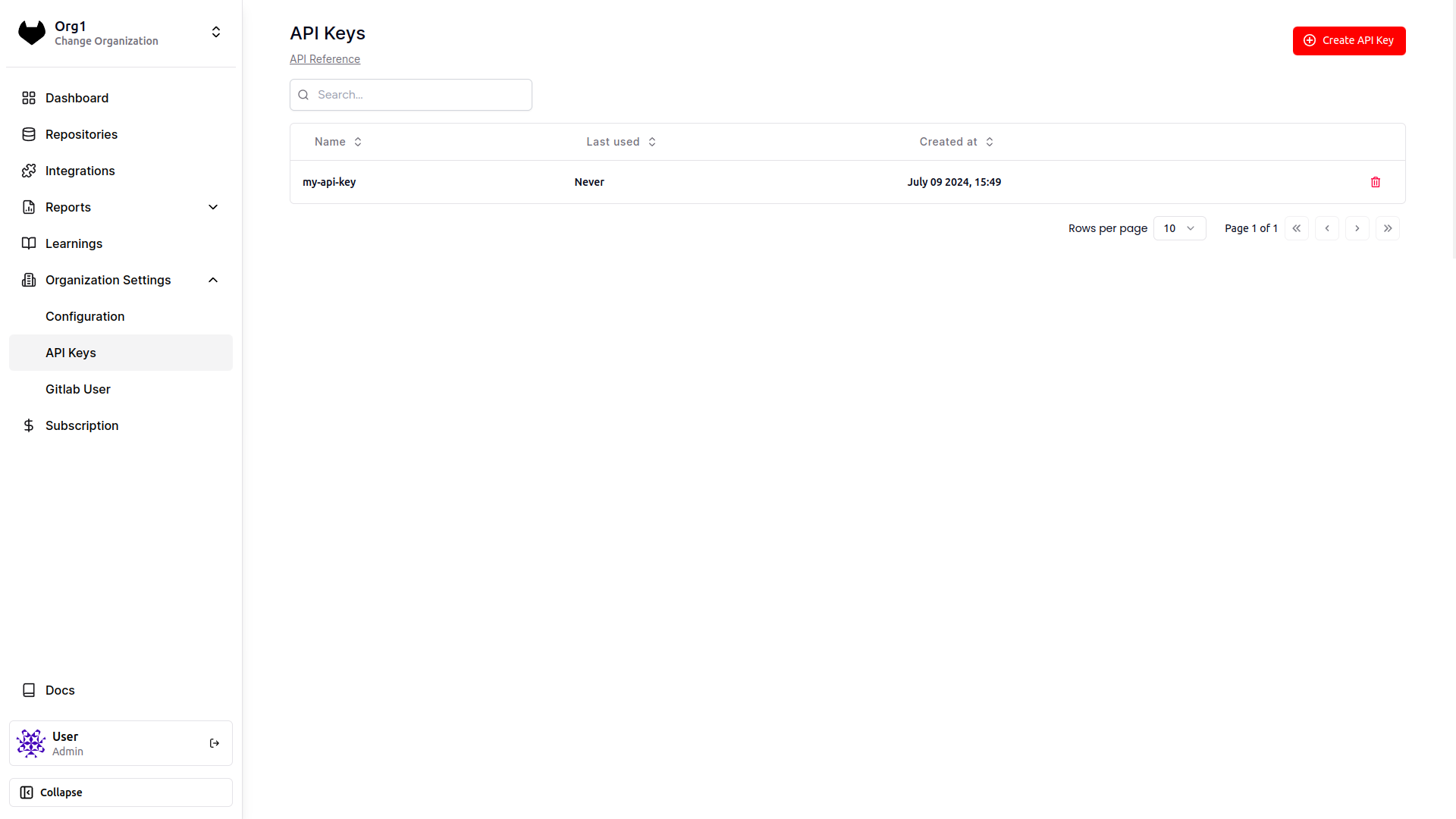
Sign in to your CodeRabbit account and navigate to the [**API
Keys**](https://app.coderabbit.ai/settings/api-keys) page under
'Organization Settings' in the left sidebar
Click on the **Create API Key** button and enter a name for the API Key
Copy the API key, and keep it safe as it won't be visible again
 ## Generate an api report
Once you have the API key, pass it in the `x-coderabbitai-api-key` header when calling the API:
```bash theme={null}
curl -X 'POST' \
'https://api.coderabbit.ai/api/v1/report.generate' \
-H 'accept: application/json' \
-H 'x-coderabbitai-api-key: cr-xxxxxxxxxxxxx' \
-H 'Content-Type: application/json' \
-d '{
"from": "2024-05-01",
"to": "2024-05-15"
}'
```
### Sample response
```json JSON wrap icon="code" theme={null}
[
{
"group": "Developer Activity",
"report": "*Developer Activity*:\n\n 🟢 **Update README.md** [#10](https://gitlab.com/master-group123/sub-group/project1/-/merge_requests/10)\n• Summary: The change updates the project description and modifies a section header for clearer instructions.\n• Last activity: 1 day ago, mergeable\n• Insights:\n - :magnifying_glass: @user2 Suggested updating the wording to make it clearer"
}
]
```
If you get a 401 UNAUTHORIZED error, check if you're passing the right API key
in the `x-coderabbitai-api-key` header
### API schema
The on-demand report generation endpoints take in inputs as per the schema shown below:
View complete API documentation and request/response schemas
## What's next
Learn how to create custom report formats and prompts
Set up automated recurring reports for regular monitoring
## Generate an api report
Once you have the API key, pass it in the `x-coderabbitai-api-key` header when calling the API:
```bash theme={null}
curl -X 'POST' \
'https://api.coderabbit.ai/api/v1/report.generate' \
-H 'accept: application/json' \
-H 'x-coderabbitai-api-key: cr-xxxxxxxxxxxxx' \
-H 'Content-Type: application/json' \
-d '{
"from": "2024-05-01",
"to": "2024-05-15"
}'
```
### Sample response
```json JSON wrap icon="code" theme={null}
[
{
"group": "Developer Activity",
"report": "*Developer Activity*:\n\n 🟢 **Update README.md** [#10](https://gitlab.com/master-group123/sub-group/project1/-/merge_requests/10)\n• Summary: The change updates the project description and modifies a section header for clearer instructions.\n• Last activity: 1 day ago, mergeable\n• Insights:\n - :magnifying_glass: @user2 Suggested updating the wording to make it clearer"
}
]
```
If you get a 401 UNAUTHORIZED error, check if you're passing the right API key
in the `x-coderabbitai-api-key` header
### API schema
The on-demand report generation endpoints take in inputs as per the schema shown below:
View complete API documentation and request/response schemas
## What's next
Learn how to create custom report formats and prompts
Set up automated recurring reports for regular monitoring