> ## Documentation Index
> Fetch the complete documentation index at: https://docs.coderabbit.ai/llms.txt
> Use this file to discover all available pages before exploring further.
# Repository settings
> Configure CodeRabbit's behavior for individual repositories using the web interface. Learn about configuration precedence and best practices.
## Browse and modify your settings using the web interface
To view or modify your repository settings using the CodeRabbit web interface:
Visit [the CodeRabbit web interface](https://app.coderabbit.ai/settings/repositories) and click **Repositories** in the sidebar
Click the gear-shaped **Settings** icon of the repository whose settings you want to view or modify
If the **Use Organization Settings** toggle is on, click it to turn it off to customize this repository's settings
If you leave the toggle on, CodeRabbit applies settings from [the organization-configuration page](/guides/organization-settings) to this repository
Browse and modify your settings. Click **Apply Changes** when you are finished.
The settings page opens in **Concise** mode by default, which shows the most commonly used settings, switch to **All** to access all possible options.
### Settings view modes
The web interface provides three ways to view and edit your repository settings. To switch modes, use the **Change mode** dropdown at the top. All three modes read from the same underlying configuration, so changes persist when you switch between them.
#### Visual Modes
* **Concise (default)**: A curated subset of the most commonly changed settings, organized into categories like General, Reviews, Pre-merge checks, and Finishing touches.
* **All Settings**: The complete list of every available setting. Switch to this mode if you need to access less common settings such as individual tool configurations, chat settings, knowledge base, code generation, and issue enrichment.
Use **Cmd+K** (Mac) or **Ctrl+K** (Windows/Linux) to open the command palette and search for any setting across all modes.
#### Text Mode
* **YAML Editor**: Direct YAML editing with syntax highlighting, real-time schema validation, and clipboard support. Only non-default values are shown. The YAML format matches `.coderabbit.yaml` for easy transfer between the web interface and repository files.
In YAML Editor mode, validation errors must be resolved before saving changes.
### Preview
In Concise and All Settings modes, a live Preview panel appears on the right side of the settings page. This panel shows a mock PR review comment that visualizes how your settings affect the information CodeRabbit displays in pull request reviews.
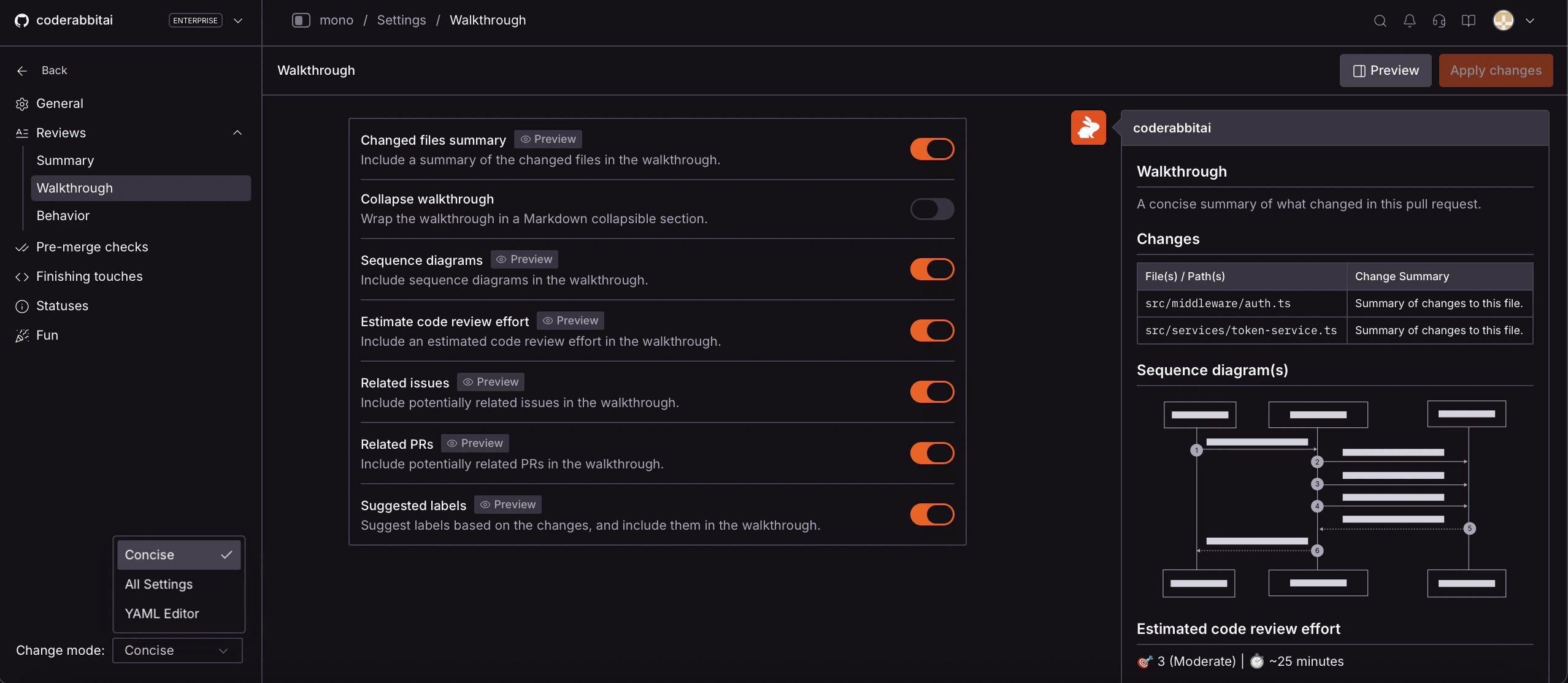 * Toggle the preview using the **Preview** button in the top-right corner. Preview is enabled by default.
* Settings that affect the PR review output are tagged with **Preview**, so you can identify which settings have a visible impact.
* When you change a setting with preview support, the preview panel automatically scrolls to the affected section and highlights the change.
The preview includes sections such as the PR summary, CodeRabbit-generated summary, walkthrough with changes table, sequence diagrams, pre-merge check results, and finishing touches.
* Toggle the preview using the **Preview** button in the top-right corner. Preview is enabled by default.
* Settings that affect the PR review output are tagged with **Preview**, so you can identify which settings have a visible impact.
* When you change a setting with preview support, the preview panel automatically scrolls to the affected section and highlights the change.
The preview includes sections such as the PR summary, CodeRabbit-generated summary, walkthrough with changes table, sequence diagrams, pre-merge check results, and finishing touches.