> ## Documentation Index
> Fetch the complete documentation index at: https://docs.coderabbit.ai/llms.txt
> Use this file to discover all available pages before exploring further.
# Linear Integration
> Connect CodeRabbit to Linear to enrich pull request reviews with issue context, validate changes against acceptance criteria, create issues from review comments, and design Coding Plans.
export const ProPlanBadge = ({tip = "This feature is available as part of the Pro, Pro+ and Enterprise plans. Please refer to our pricing page for more information about our plans and features.", title = "Pro Plan", cta = "Read more", href = "https://coderabbit.ai/pricing", disabled = false}) => {
return
{title}
;
};
export const AllPlatformsBadge = ({tip = "This feature is available on all supported platforms: GitHub, GitLab, Azure DevOps, and Bitbucket.", title = "All Platforms", cta, href, disabled = false}) => {
return
{title}
;
};
|
## Overview
The Linear integration connects CodeRabbit to your Linear workspace, bringing issue context into every stage of development. Here's what the integration enables:
Pulls in Linear issue details so CodeRabbit understands *why* a change is
being made
Assesses whether code changes address the linked issue's acceptance criteria
Generates step-by-step Coding Plans from Linear issues for coding agents and
IDE copilots
Creates new Linear issues directly from PR review comments
## Prerequisites
Before setting up the Linear integration, ensure you have:
* A Linear account with access to the workspace you want to connect
* A CodeRabbit Pro plan
## Install the Linear integration
The Linear integration uses OAuth authentication to securely connect your Linear workspace to CodeRabbit.
Navigate to
[Integrations](https://app.coderabbit.ai/integrations?tab=integrations) in
the CodeRabbit app and toggle **Linear** to enable the integration.
You will be redirected to Linear's login page. Enter your credentials to
authorize CodeRabbit to access your Linear workspace.
## Configure CodeRabbit for Linear
After connecting Linear, configure which Linear teams CodeRabbit should access by adding your team keys. The team key is a short team identifier—for example, if your issue URL is `https://linear.app/company/issue/DEV-123`, the team key is `DEV`.
Add the `team_keys` setting under `knowledge_base.linear` in your `.coderabbit.yaml` file:
```yaml .coderabbit.yaml theme={null}
# yaml-language-server: $schema=https://coderabbit.ai/integrations/schema.v2.json
knowledge_base:
linear:
usage: "enabled"
team_keys:
- "DEV"
- "ENG"
chat:
integrations:
linear:
usage: "enabled"
```
The `usage` setting controls when the integration is active:
* `auto` (default): Disabled for public repositories, enabled for private repositories
* `enabled`: Always enabled
* `disabled`: Always disabled
1. Navigate to your repository or organization settings in the [CodeRabbit app](https://app.coderabbit.ai)
2. Go to **Configuration** → **Knowledge Base**
3. Under **Linear**, add your team keys
4. Save the configuration
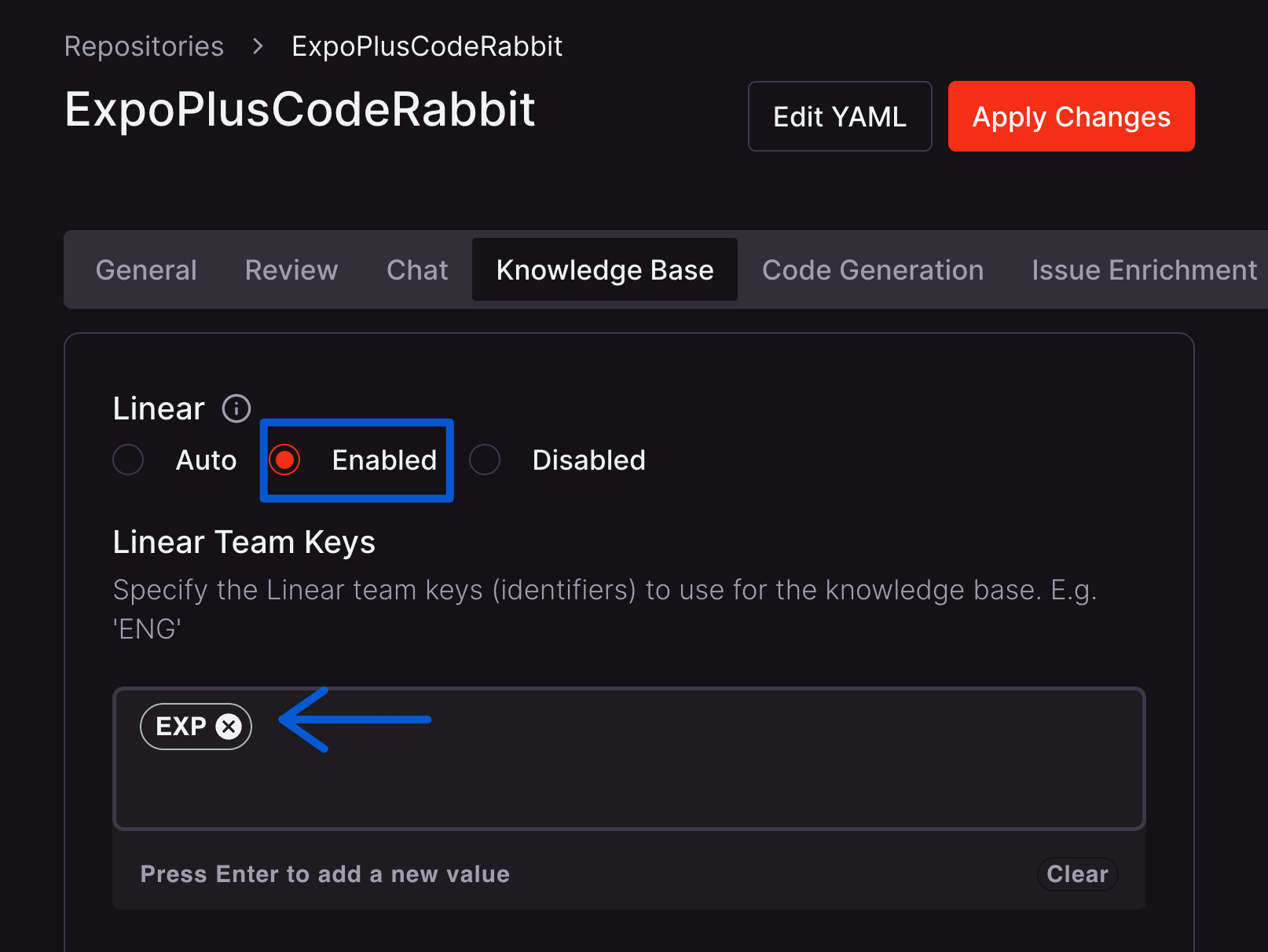 By default, Linear integration is enabled for private repositories and
disabled for public repositories. You can override this behavior by setting
`knowledge_base.linear.usage: enabled` and `chat.integrations.linear.usage:
enabled` in your `.coderabbit.yaml` file or using the web interface. See the
[Configuration reference](/reference/configuration) for details.
## Example usage
### Linking Linear issues to pull requests
To have CodeRabbit validate requirements from a Linear issue, include the issue URL in your pull request description:
```md theme={null}
This PR implements the user authentication flow.
Closes https://linear.app/company/issue/DEV-123
```
CodeRabbit will fetch the issue details and assess whether your code changes address the requirements specified in the issue. See the [Linked issues guide](/issues/pr-validation) for best practices on linking issues.
### Creating Linear issues from reviews
During a code review, you can ask CodeRabbit to create a Linear issue by mentioning `@coderabbitai` in a comment:
```md theme={null}
@coderabbitai create a Linear issue for this bug in the DEV team
```
CodeRabbit will create a well-structured issue with relevant context from the code review discussion. See the [Issue creation guide](/issues/creation) for more details.
## Related resources
Best practices for linking issues to pull requests
Generate Coding Plans from issues for coding agents
Create issues directly from CodeRabbit reviews
By default, Linear integration is enabled for private repositories and
disabled for public repositories. You can override this behavior by setting
`knowledge_base.linear.usage: enabled` and `chat.integrations.linear.usage:
enabled` in your `.coderabbit.yaml` file or using the web interface. See the
[Configuration reference](/reference/configuration) for details.
## Example usage
### Linking Linear issues to pull requests
To have CodeRabbit validate requirements from a Linear issue, include the issue URL in your pull request description:
```md theme={null}
This PR implements the user authentication flow.
Closes https://linear.app/company/issue/DEV-123
```
CodeRabbit will fetch the issue details and assess whether your code changes address the requirements specified in the issue. See the [Linked issues guide](/issues/pr-validation) for best practices on linking issues.
### Creating Linear issues from reviews
During a code review, you can ask CodeRabbit to create a Linear issue by mentioning `@coderabbitai` in a comment:
```md theme={null}
@coderabbitai create a Linear issue for this bug in the DEV team
```
CodeRabbit will create a well-structured issue with relevant context from the code review discussion. See the [Issue creation guide](/issues/creation) for more details.
## Related resources
Best practices for linking issues to pull requests
Generate Coding Plans from issues for coding agents
Create issues directly from CodeRabbit reviews