> ## Documentation Index
> Fetch the complete documentation index at: https://docs.coderabbit.ai/llms.txt
> Use this file to discover all available pages before exploring further.
# Add organizations
> Learn how to add new organizations to CodeRabbit and grant the necessary permissions to enable code review across your organization's repositories.
Adding organizations to CodeRabbit allows you to extend code review capabilities across all repositories within your organization. This process requires proper permissions and may involve organization admin approval.
## How to add organizations
Follow these steps to add a new organization to your CodeRabbit account:
Go to [app.coderabbit.ai](https://app.coderabbit.ai) and ensure you're
logged in to your account.
Click the **Refresh** button next to your organizations list to check for
new organizations that you have access to. 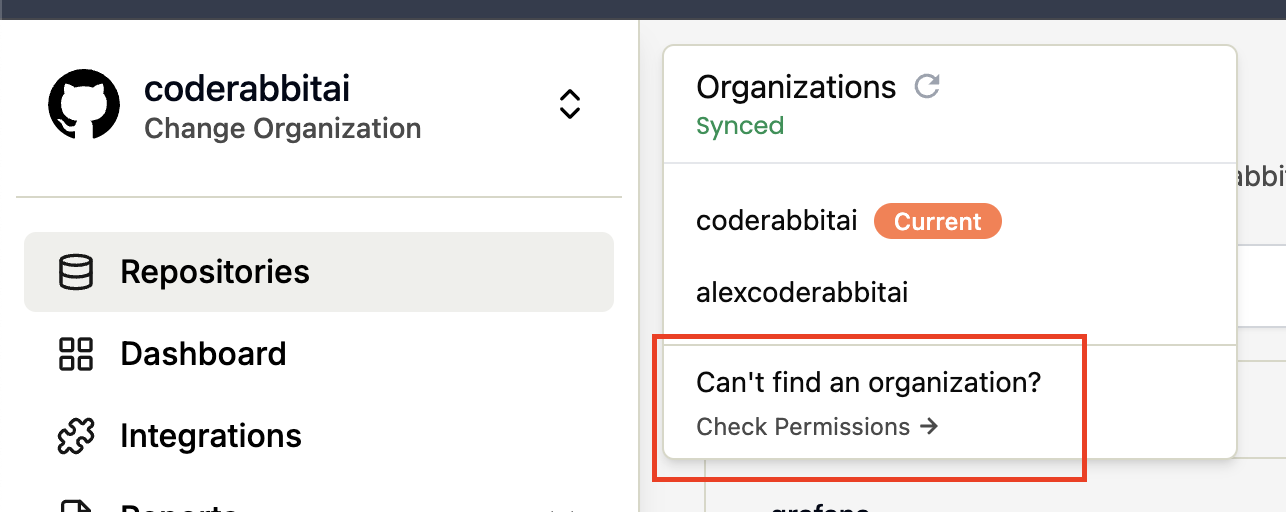 Find the organization you want to add in the list of available
organizations.
Click the **Grant** button next to the organization name to authorize
CodeRabbit access.
Find the organization you want to add in the list of available
organizations.
Click the **Grant** button next to the organization name to authorize
CodeRabbit access. 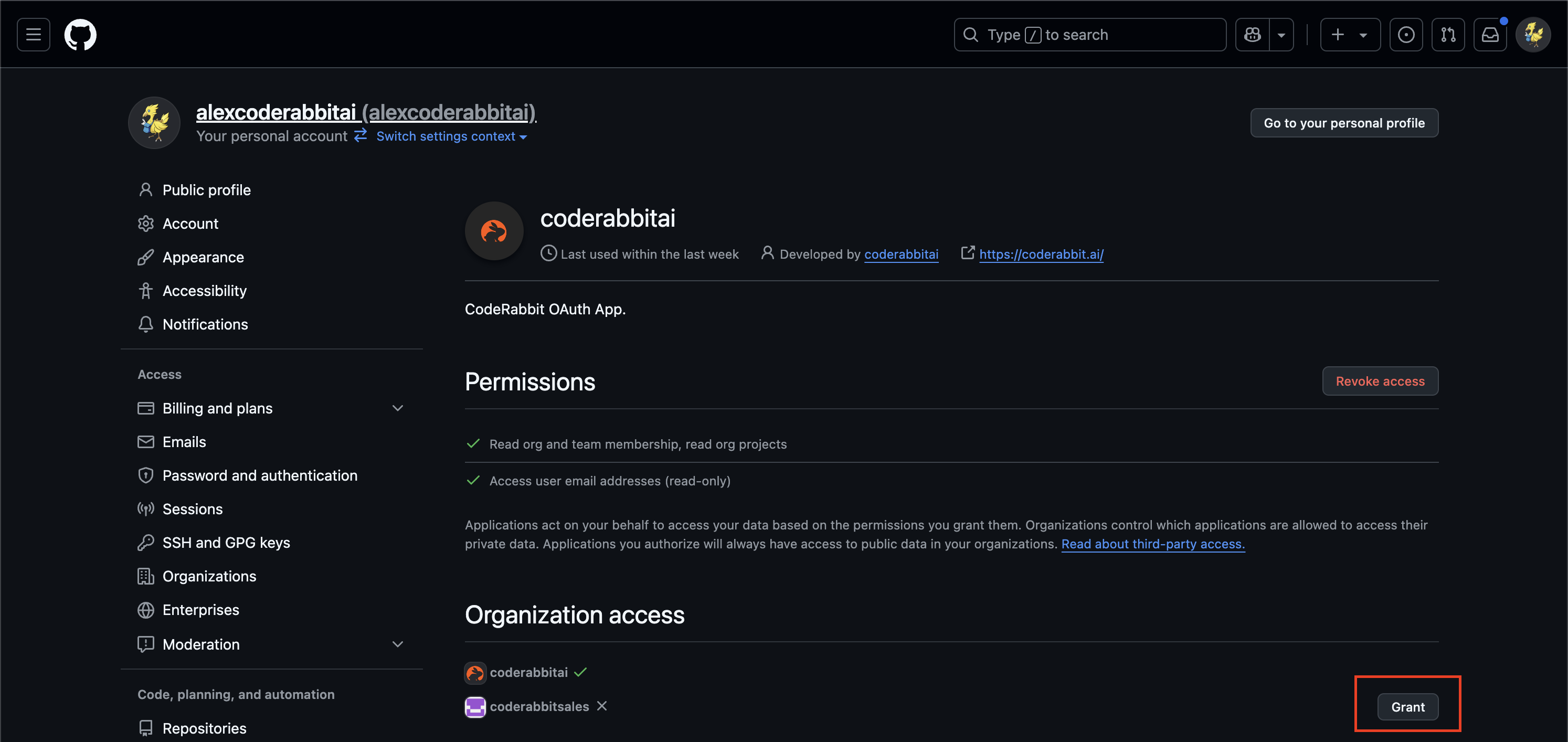 ## What permissions does CodeRabbit need?
When you grant CodeRabbit access to an organization, it receives the following permissions:
* **Read organization and team membership** - To understand your team structure
* **Read organization projects** - To access repositories for code review
* **Access user email addresses (read-only)** - For notifications and user identification
Organizations control which applications are allowed to access their private
data. You may need organization admin approval to complete this process. If
you don't see the **Grant** button, contact your organization administrator to
approve CodeRabbit's application request.
## What's next
Once you've successfully added your organization, you can:
* [Configure CodeRabbit](/getting-started/yaml-configuration) for your organization's specific needs
* [Manage your subscription](/management/subscription-management) to ensure adequate seats for your team
* [Set up repository-specific settings](/guides/repository-settings) for fine-tuned control
## What permissions does CodeRabbit need?
When you grant CodeRabbit access to an organization, it receives the following permissions:
* **Read organization and team membership** - To understand your team structure
* **Read organization projects** - To access repositories for code review
* **Access user email addresses (read-only)** - For notifications and user identification
Organizations control which applications are allowed to access their private
data. You may need organization admin approval to complete this process. If
you don't see the **Grant** button, contact your organization administrator to
approve CodeRabbit's application request.
## What's next
Once you've successfully added your organization, you can:
* [Configure CodeRabbit](/getting-started/yaml-configuration) for your organization's specific needs
* [Manage your subscription](/management/subscription-management) to ensure adequate seats for your team
* [Set up repository-specific settings](/guides/repository-settings) for fine-tuned control