

Choose a destination
An automation can deliver to up to 10 targets. In the Target card, select Add target to add another one. An automation has at most one Slack or Discord destination and at most one GitHub repository; the other targets are workspace connections. For example, the Create PR from Linear issue template opens the pull request in a GitHub repository and comments the pull request link on the Linear issue through a Linear target. When you start from a template, the editor uses the template’s targets; to add more, save the automation, then edit it.
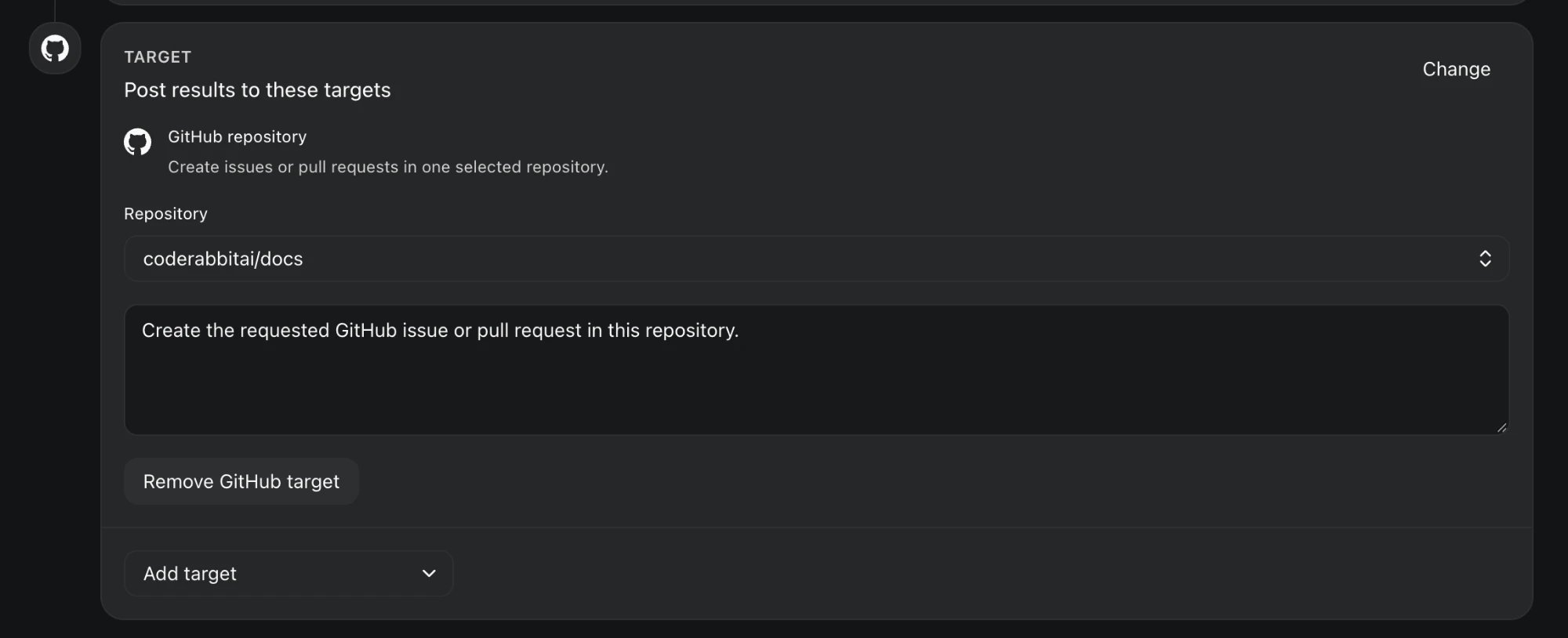
A GitHub repository target with its own instructions, and Add target to deliver to more places
Workspace connections
Any connection that CodeRabbit can write to can be a destination, and the Target card lists every provider you can pick. Read-only connections aren’t offered. Each connection destination has Target instructions that say how to deliver the result, such as “Post one comment on the original Linear issue with a one-line summary. Do not change issue fields.” The editor shows the connections available to automations; if one is missing, see Connections and Base Scope.GitHub repository
Add a GitHub repository target and choose a Repository. The target’s instructions say what to create, for example “Open one pull request with the implemented fix. Do not merge the pull request.” CodeRabbit creates the issue or pull request with the permissions of the CodeRabbit GitHub App. See Identity for changes.Slack and Discord
For webhook automations that post to Slack or Discord, What to post describes the message CodeRabbit posts for each event. Safety and link rules, shown under Advanced, always apply. In public Slack channels, CodeRabbit joins the channel before it posts. Discord automations work in public channels. For platform details, see Delivery in Slack and Automations in Discord.Delivery modes
Slack and Discord destinations deliver in one of two modes:
Workspace connections and GitHub repositories have no threads. Each run writes to the item the instructions name, such as the triggering issue or incident, or a new pull request.
Connections and Base Scope
Automations created on the Automations page can use the connections in Base Scope, or in the automation’s agent scope if you set one. To use a connection that the scope doesn’t include, add it to the scope first. Until you do, the editor shows a notice such as “Add this connection to Base Scope before using it in an automation.” with a button to Set up Base Scope or Configure Base Scope, and Check again after you change it. If the scope later drops a connection that an automation uses, the automation pauses and shows Paused · Connection unavailable. Add the connection back, then resume the automation. Adding a new connection requires a CodeRabbit admin. See Connections. Automations that live in a Slack or Discord channel or DM use the that applies to the automation’s creator in that place, or to whoever selected Run now, not to the person who posted a matching message. That scope decides which repositories and connections the run can use, and which spend limits apply.Agent scope
By default, an automation uses the workspace’s default resources. To give one automation its own repositories and connections, open the Agent instructions card, which shows the current Agent scope, and select Customize agent scope or Edit agent scope:
Select Apply scope, then save the automation. Changing an automation’s agent scope requires permission to manage scopes. See Scopes and Base Scope.
Identity for changes
Automation runs never act with a personal, per-request “as me” identity, even when the instructions ask for it. Issues and pull requests that an automation creates in a GitHub repository destination are created with the permissions of the CodeRabbit GitHub App, so the app must be installed on that repository. For which connections and repositories a run can use, see Connections and Base Scope. Connection permissions and repository access checks always apply.What’s next
Manage and monitor automations
Follow each run and confirm that results reached their destination.
Scopes and Base Scope
Control which connections automations can use.
Automation guides
See which destinations fit incident response, support triage, and ticket triage.