

The Automations page
Select Automations > Home in the sidebar. The page starts with Templates for new automations, followed by the list of automations, split into My automations and Other workspace automations.
Use Search automations… to find an automation by name, and the All trigger types and All statuses filters to narrow the list. Select an automation to open its details.
The Automations Agent usage notice at the top of the list shows trial and billing status. See Who can use Automations.
Slack > Automations and Discord > Automations show the automations for that platform, along with their Prebuilt automations.
Automation details
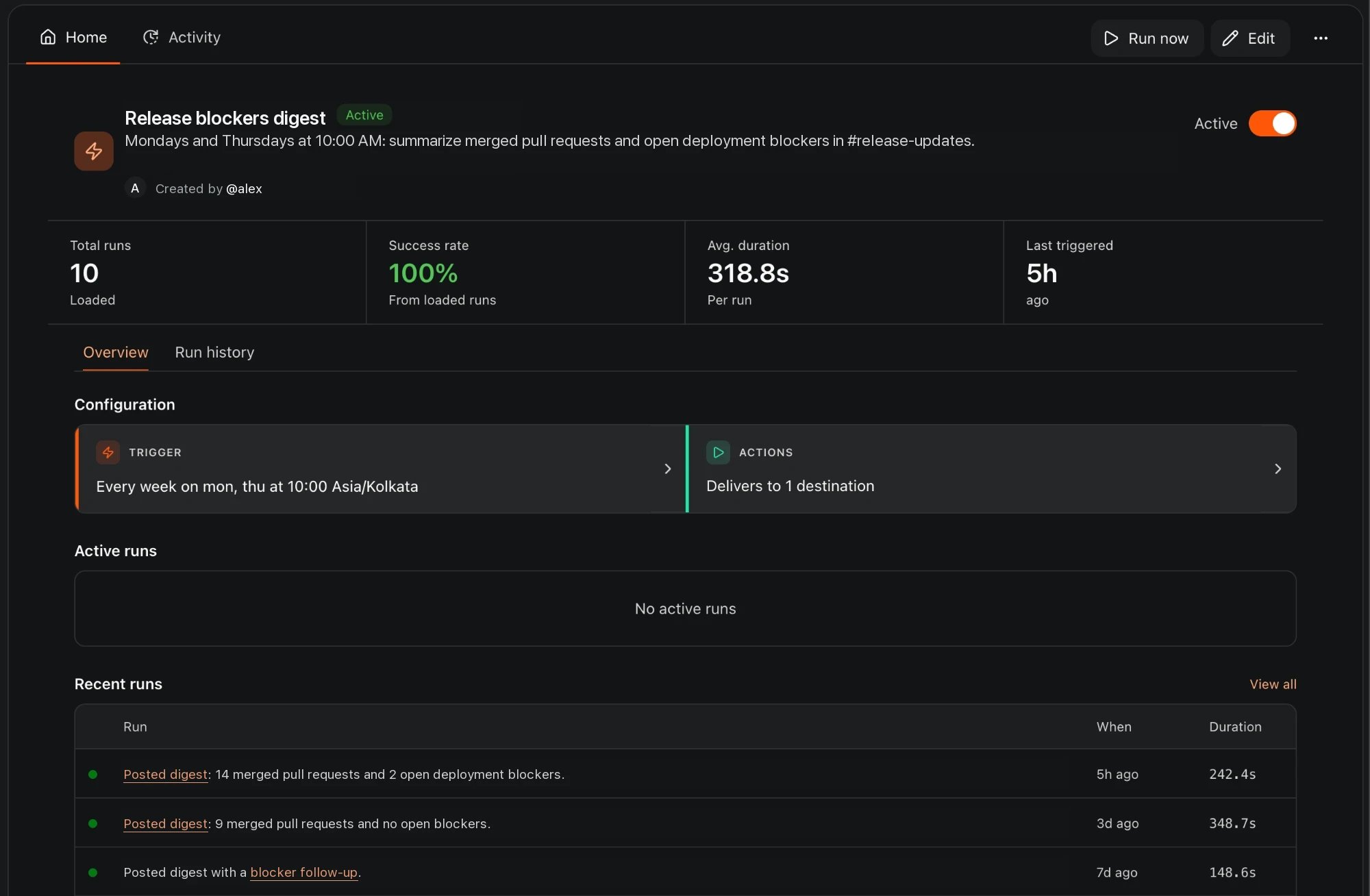
An automation's page, with example data: totals, the trigger and its delivery, and recent runs
- Run now: starts a run of an active scheduled automation. See Run now, pause, resume, and delete.
- Edit: opens the automation editor. See Edit an automation.
- The overflow menu: Pause automation or Resume automation, and Delete automation.
Overview
- Total runs, Success rate, Avg. duration, and Last triggered.
- A summary of the trigger and destinations. Select Show trigger details or Show delivery destinations for the full configuration.
- Active runs: runs that are scheduled or running. A running run shows its latest step; select Show activity to see everything it has done so far.
- Recent runs: the latest five runs. Select View all to open Run history.
Run history
Previous runs lists every finished run, 10 per page, with its When and Duration. Select Open run to see what the run did. A run has one of these statuses:
Webhook deliveries that match no rule, and repeated deliveries removed by deduplication, don’t create runs and don’t appear here.
If you can view an automation but not manage it, its page is read-only and doesn’t show the last run’s summary.
Activity
Automations > Activity lists runs across all the automations you can see. Use it to compare runs and track Agent minutes.
Each row shows when the run happened, its Agent minutes (“Not recorded” when unknown), and who or what triggered it. Select a run to open its details. The list refreshes every 30 seconds; select Refresh to update it right away.
Slack > Activity and Discord > Activity also include conversations with CodeRabbit Agent and filter by scope, channel, and user. See Usage in Slack.
Run now, pause, resume, and delete
Channel message and webhook automations can’t be run on demand. To test them, see Test a trigger.
The web app has no control to stop a run in progress. Slack and Discord automations can be stopped from their channel. See Manage automations in Slack.
The CodeRabbit API supports the same actions with
run_now, pause, resume, and delete commands. See Create automations with the API.
Permissions
CodeRabbit admins, members with the Admin role, can see and manage every automation. Everyone else can see and manage the automations they created, and can see some others read-only:
The Automation admin role adds to member access: managing other people’s automations that were created on the Automations page without a Slack or Discord destination, and automations in public channels. The first two rows describe the web app; the last two describe Slack and Discord:
To assign the role, see Automation admins. For who can create automations, see Who can create automations.
Archived automations
CodeRabbit archives an automation automatically when its place to run or deliver is gone. Archiving is different from pausing: you pause an automation yourself, and CodeRabbit archives it. An automation is archived when:- It was a one-time automation and has run.
- Its creator left the workspace.
- The CodeRabbit app was uninstalled from the Slack workspace or Discord server.
- Its channel was deleted, or CodeRabbit lost access to it.
- Its DM can’t be used anymore.
- It replies in a fixed thread, and the thread’s first message is gone.
Spend limits
Automation runs use Agent minutes. Three limits can cap their spend:
Channel message triggers on busy channels can start many runs, so give those channels their own limit.
What’s next
Automation triggers
Check why a trigger did or didn’t start a run.
Automation destinations
Change where an automation delivers its results.
Automation guides
Set up incident response, support triage, ticket triage, and more, step by step.