

This guide covers work-item-based planning with Azure DevOps Boards. For the full CodeRabbit Plan documentation, see CodeRabbit Plan.
Prerequisites
Complete the Azure DevOps platform setup for the repositories you want CodeRabbit to plan against. The Azure DevOps user or service account configured for CodeRabbit must have read and write access to work items, as well as access to the related repository.Initiating Planning
Manual Planning
CodeRabbit Command
Comment
@coderabbitai plan or @coderabbit plan on an Azure DevOps Boards work item to generate a plan.You can also select the CodeRabbit user from the comment editor’s @-mention
picker and type
plan after the mention.Auto-Planning
Auto-planning is not yet available for Azure DevOps Boards. Use the plan command to generate plans on demand. Auto-planning rulesets are available for Jira and Linear, and label-based auto-planning is available for GitHub and GitLab.Repository Resolution
Since Azure DevOps Boards work items aren’t always tied to a specific repository, CodeRabbit needs to determine which repository to analyze when generating a plan. CodeRabbit attempts to resolve the repository in this order:1
Check Work Item Description
If the work item description contains
repository: <repo-name> or a link to a repository, CodeRabbit uses that repository.2
Automatic Detection
CodeRabbit leverages its deep understanding of your project to intelligently
predict which repository is most relevant.
3
Ask the User
If CodeRabbit can’t confidently determine the repository, it replies to the work item asking you to specify which repository to use. Reply with the repository name in a follow-up work item comment to continue planning.
Viewing and Refining Plans
Once a Coding Plan is generated, CodeRabbit replies on the work item with a link to the plan in the CodeRabbit web app. Anyone in your organization can view and work with the plans.Plans in the web app are organization-specific. If a plan shows a 404 error,
verify you’re viewing the correct organization in the CodeRabbit web app.
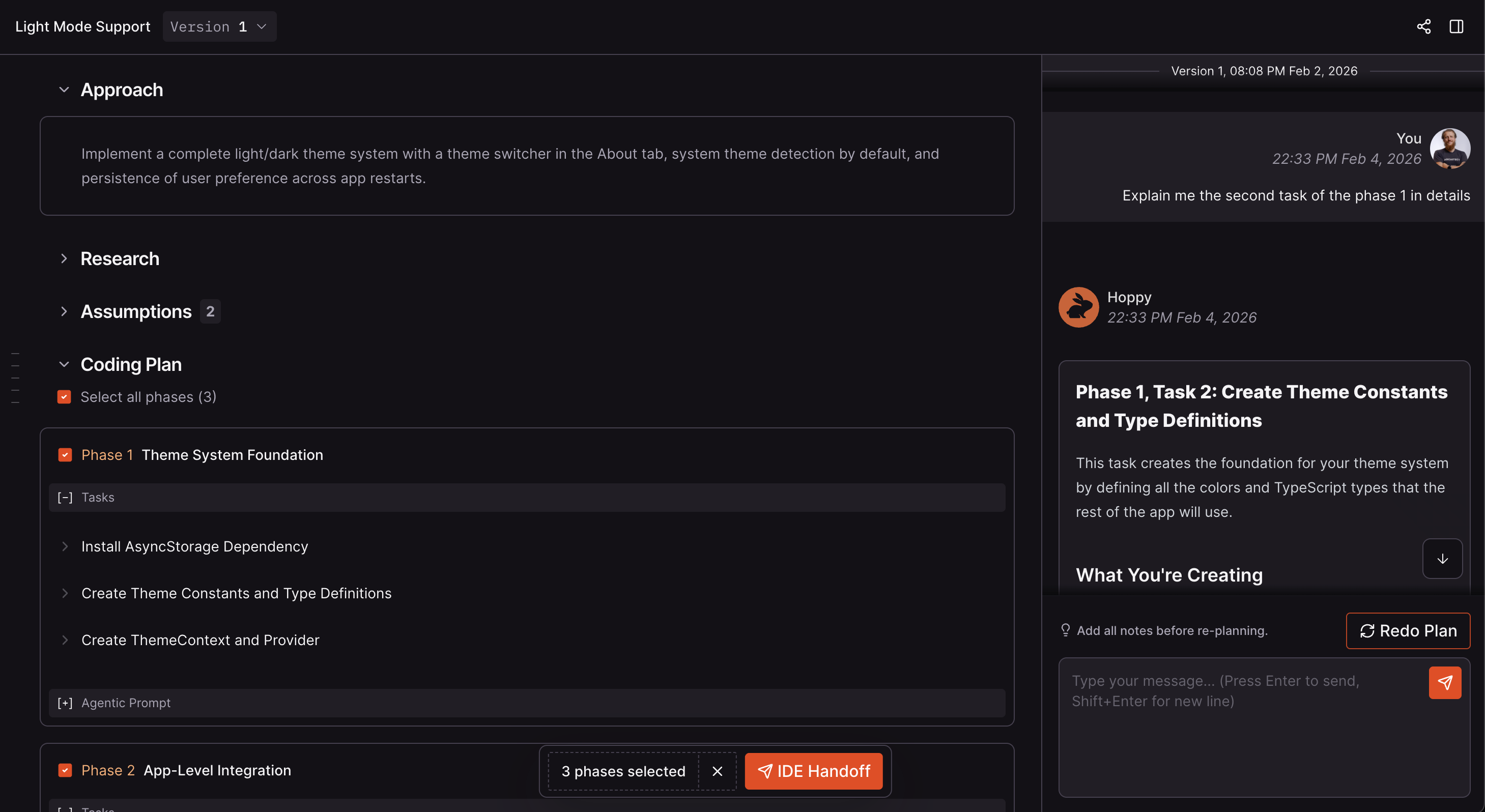
View Coding Plans in the CodeRabbit web app
Chatting about Your Plan
Use the chat panel on the right side of the plan viewer in the CodeRabbit web app to:- Ask questions about the plan or the codebase
- Request changes to specific tasks or phases
- Challenge design choices and provide additional context
- Get clarification on implementation details
Re-planning
After providing feedback through chat:- Review your feedback in the chat history
- Click the Redo button
- CodeRabbit generates a new plan version incorporating your feedback
Version History
Each re-plan creates a new version. Use the version selector at the top of the plan viewer to:- View previous versions
- Compare what changed between versions
- Revert to an earlier version by marking it as active
You can only chat about the currently active version.