

This guide covers issue-based planning with Linear. For the full CodeRabbit Plan documentation, see CodeRabbit Plan.
Prerequisites
Enable the Linear integration as explained in integrations documentation.Initiating Planning
Manual Planning
CodeRabbit Command
Comment
@coderabbitai plan on any issue to generate a plan.Auto-Planning (Recommended)
Navigate to the Planning tab in the CodeRabbit web app to configure automatic planning rulesets.Configuration via Web UI Only: Auto-planning rulesets must be configured
through the CodeRabbit web interface. Configuration via
.coderabbit.yaml is
not supported for this feature.
You can create multiple rulesets with different combinations of conditions. A plan is triggered when any ruleset matches.
Auto-planning rulesets are configured at the workspace level. When your workspace has multiple CodeRabbit organizations or Linear connections, select the organization and issue tracker Connection before choosing repositories or conditions. Each ruleset is saved against the selected Linear connection.
Specifying a repository using the Repository selector ensures plans are
always generated against the correct codebase in the selected organization,
skipping the repository resolution step.
Repository Resolution
Since Linear issues aren’t tied to a specific repository, CodeRabbit needs to determine which repository to analyze when generating a plan. CodeRabbit attempts to resolve the repository in this order:1
Check Issue Description
If the issue description contains
repository: <repo-name> or a link to a repository, CodeRabbit uses that repository.2
Check Planning Rulesets
If a planning ruleset specifies a repository, CodeRabbit uses that repository.
3
Automatic Detection
CodeRabbit leverages its deep understanding of your project to intelligently
predict which repository is most relevant.
4
Ask the User
If CodeRabbit can’t confidently determine the repository, it replies to the issue asking you to specify which repository to use. Reply with the repository name to continue planning.
Viewing and Refining Plans
Once a Coding Plan is generated, view it in the CodeRabbit web app. Anyone in your organization can view and work with the plans.Plans in the web app are organization-specific. If a plan shows a 404 error,
verify you’re viewing the correct organization in the CodeRabbit web app.
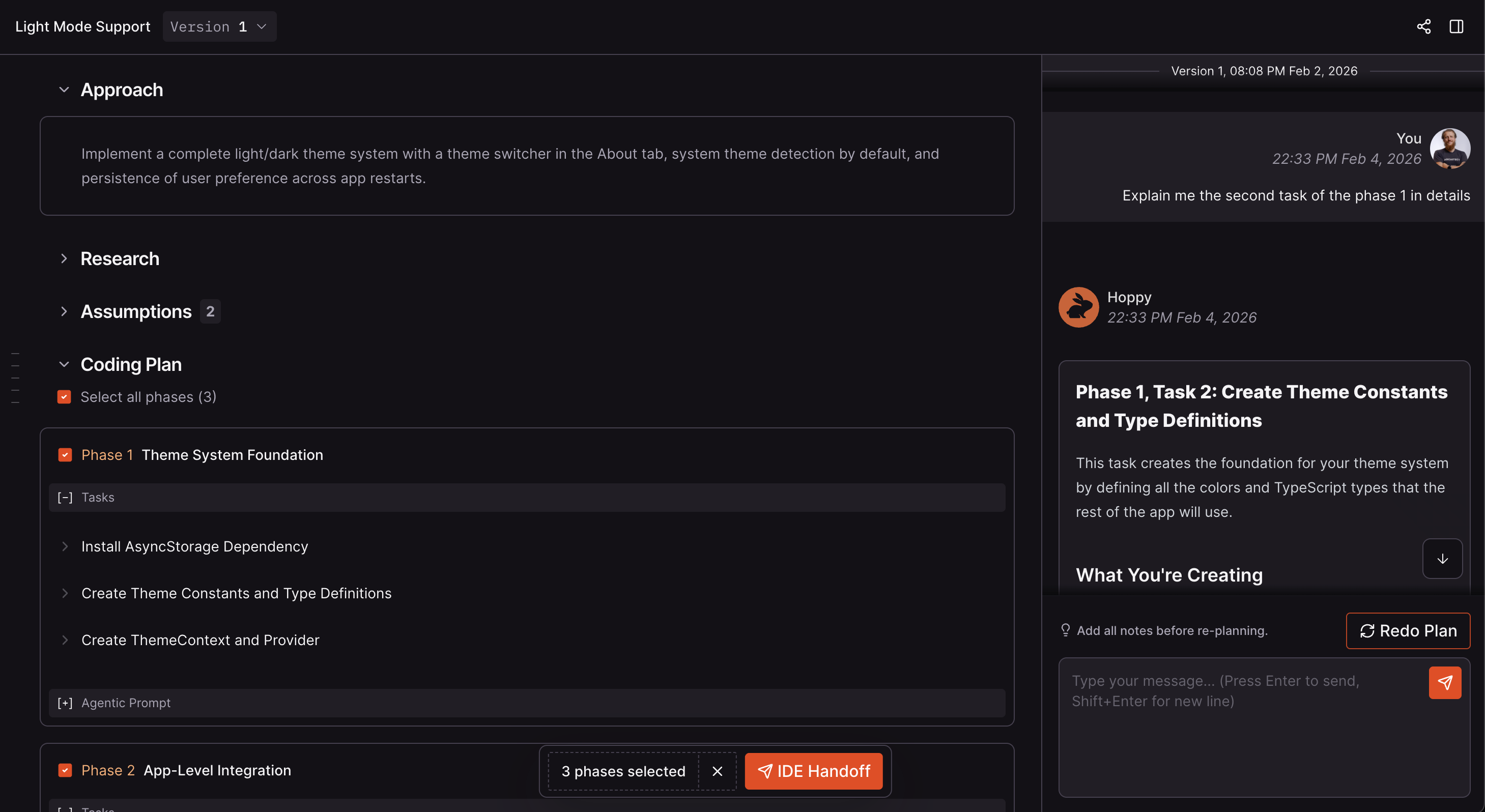
View Coding Plans in the CodeRabbit web app
Chatting about Your Plan
Use the chat panel on the right side of the plan viewer in the CodeRabbit web app to:- Ask questions about the plan or the codebase
- Request changes to specific tasks or phases
- Challenge design choices and provide additional context
- Get clarification on implementation details
Re-planning
After providing feedback through chat:- Review your feedback in the chat history
- Click the Redo button
- CodeRabbit generates a new plan version incorporating your feedback
Version History
Each re-plan creates a new version. Use the version selector at the top of the plan viewer to:- View previous versions
- Compare what changed between versions
- Revert to an earlier version by marking it as active
You can only chat about the currently active version.