

About organization settings
You can use the CodeRabbit web interface to set the CodeRabbit configuration for all Git repositories associated with your organization. By default, all repositories apply your organization’s CodeRabbit configuration.You can override organization settings for individual repositories if needed.
For more information, see Repository
settings.
Browse and modify your organization settings
1
Access the CodeRabbit web interface
Visit the CodeRabbit web
interface.
2
Navigate to organization settings
In the sidebar, click Organization Settings.
3
Modify settings
Browse and modify your settings. The settings page opens in Concise mode
by default, which shows the most commonly used settings. When you’re finished
making changes, click Apply Changes to save your configuration.
If configuration inheritance is disabled and a repository has individual settings enabled via configuration file or via repository settings, Organization Settings will be ignored. Unset values will fall back to schema defaults.
Workspace Settings
Enterprise customers can enable Use Workspace Settings from Organization Settings. This organization-level setting replaces organization settings with workspace settings, makes the affected organization sections read-only, and falls back to schema defaults when a workspace value does not exist. Use workspace settings as defaults is a separate workspace-level setting for eligible Enterprise SSO workspaces. It only fills repository or organization values that are unset and keeps explicit values in place. See Use workspace settings as defaults for its availability and fill rules, and Configuration inheritance for the full hierarchy.Settings view modes
The web interface provides three ways to view and edit your organization settings. All three modes read from the same underlying configuration, so changes persist when you switch between them.- Concise (default): A curated subset of the most commonly changed settings, organized into categories like General, Reviews, Pre-merge checks, and Finishing touches.
- All Settings: The complete list of every available setting. Switch to this mode if you need to access less common settings such as individual tool configurations, chat settings, knowledge base, code generation, and issue enrichment.
- YAML Editor: Direct YAML editing with syntax highlighting, real-time schema validation, and clipboard support. Only non-default values are shown. The YAML format matches
.coderabbit.yamlfor easy transfer between the web interface and repository files.
In YAML Editor mode, validation errors must be resolved before saving
changes.
Preview
In Concise and All Settings modes, a live Preview panel appears on the right side of the settings page. This panel shows a mock PR review comment that visualizes how your settings affect the information CodeRabbit displays in pull request reviews.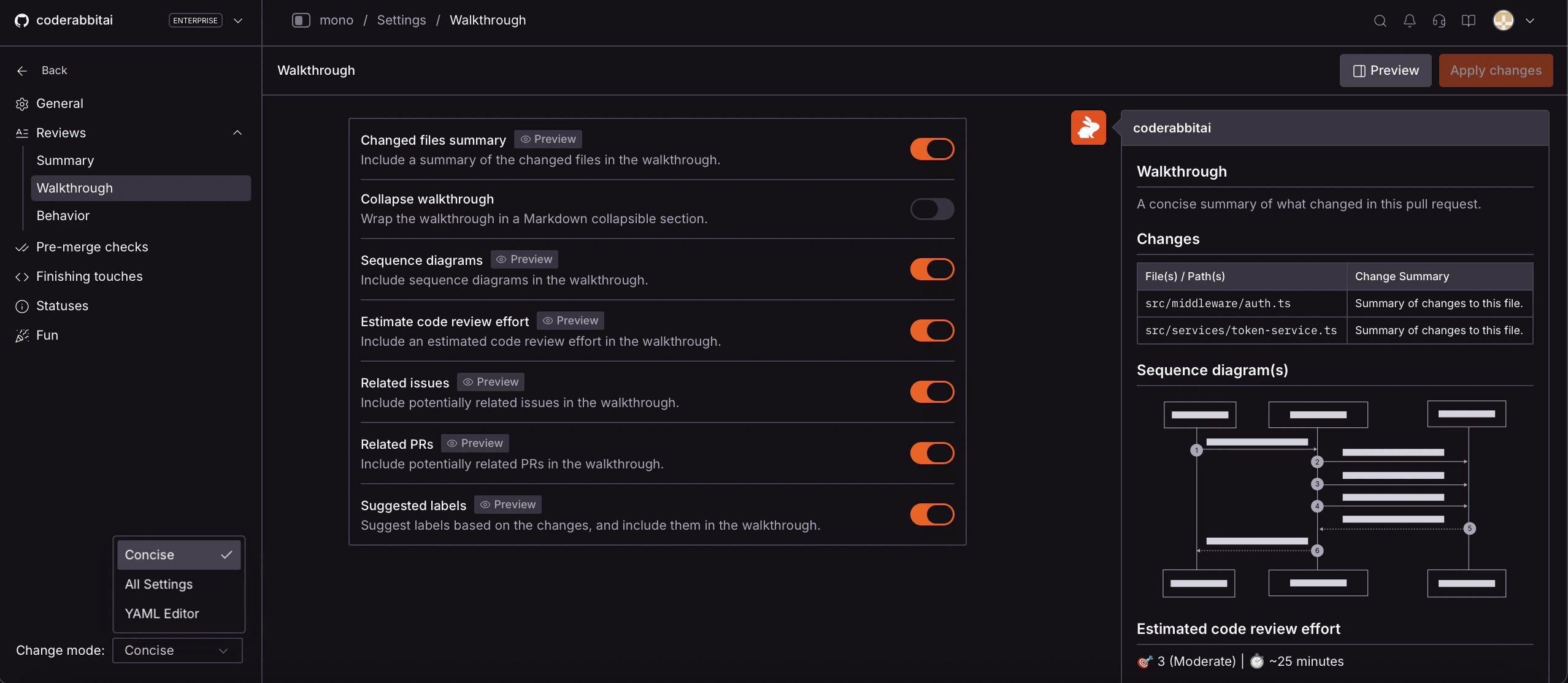
Concise mode with the Preview panel showing a live mock of how walkthrough settings affect the PR review comment
- Toggle the preview using the Preview button in the top-right corner. Preview is enabled by default.
- Settings that affect the PR review output are tagged with Preview, so you can identify which settings have a visible impact.
- When you change a setting with preview support, the preview panel automatically scrolls to the affected section and highlights the change.