

Overview
The Jira integration connects CodeRabbit to your Jira workspace, bringing issue context into every stage of development. Here’s what the integration enables:Context enrichment
Pulls in Jira issue details so CodeRabbit understands why a change is
being made
Requirement validation
Assesses whether code changes address the linked issue’s acceptance criteria
Issue planning
Generates step-by-step from Jira issues for coding agents and
IDE copilots
Issue creation
Creates new Jira issues directly from PR review comments
Prerequisites
Before setting up the Jira integration, ensure you have:- A Jira Cloud account (for Jira Data Center or self-hosted, see Jira Data Center below)
- Admin access to install apps on your Jira site
- A CodeRabbit Essentials plan
Install the Jira Cloud integration
The Jira Cloud integration uses a Forge app from the Atlassian Marketplace. Follow these steps to connect your Jira site to CodeRabbit:1
Add a Jira connection in CodeRabbit
Open Connections, select Add connection, choose Jira, and select Direct connection for Review.
2
Copy the installation secret
A modal appears with setup instructions and an Installation Secret
(valid for 15 minutes). Copy the secret, then click Open Atlassian
Installation.
3
Install from Atlassian Marketplace
On the Atlassian Marketplace page for the CodeRabbit app, click Get app.
4
Select your Jira site
Choose which Jira site to install the CodeRabbit app on and click
Install.
5
Open Jira app settings
In your Jira site, click the Settings gear icon and select Marketplace
apps.
6
Complete the setup
Under Apps, select CodeRabbit. On the CodeRabbit Setup page, paste
the Installation Secret you copied earlier and click Complete Setup.
7
Verify the integration
Return to CodeRabbit and click Refresh Status to confirm the integration
is connected.
8
Add the connection to the Review Base Scope
If you did not add the connection to the Review Base Scope during setup, open Review scopes and select it there.
The Installation Secret expires after 15 minutes. If it expires before you
complete the setup, start the process again from step 1.
Jira Data Center (Self-Hosted)
Authentication and permissions
Jira Data Center uses a personal access token (PAT) with its REST API v2 client. The PAT does not use OAuth-style selectable scopes; it inherits the permissions of the Jira user who issues it. Use a dedicated CodeRabbit service account so you can scope and audit its access independently. Grant the integration user these permissions:- Access tickets and manage webhooks (required): Grant read and search access to every project and issue CodeRabbit should use, including issue details, comments, and attachments. The user must also be able to manage webhooks. During setup, CodeRabbit checks the Jira server and registers its webhook; the connection cannot be saved if Jira rejects the webhook registration.
- Create issues (recommended): Grant issue-creation permission only if you want users to create Jira issues through CodeRabbit.
- Add comments (recommended): Grant comment-creation permission for Jira-triggered Issue Planner acknowledgments, errors, and plan-ready replies.
- Update comments (recommended): Grant permission to update comments created by the integration user so CodeRabbit can update its Jira response comment.
issue-created, issue-updated, comment-created, comment-updated, and comment-deleted events. Jira 9 uses the older webhook API and subscribes only to issue-created and issue-updated events.
Network access
Your Jira Data Center instance must allow inbound HTTPS connections from CodeRabbit’s outbound IP addresses. If your Jira Data Center instance requires IP allowlisting, add these CodeRabbit IP addresses:Integration behavior
Configure CodeRabbit for Jira
After connecting Jira, useproject_keys to allow specific Jira projects and excluded_project_keys as the deny override. The project key is the prefix that appears before issue numbers—for example, if your issue URL is https://company.atlassian.net/browse/PROJ-123, the project key is PROJ.
Excluded project keys are never used as CodeRabbit context, regardless of repository allowlists. Exclusions are managed as a workspace-level security policy and always take precedence over project_keys.
- YAML Configuration
- Web Interface
Add the The
project_keys setting under knowledge_base.jira in your .coderabbit.yaml file:.coderabbit.yaml
usage setting controls when the integration is active:auto(default): Disabled for public repositories, enabled for private repositoriesenabled: Always enableddisabled: Always disabled
issue_template setting is a free-form string that shapes the description CodeRabbit writes for Jira issues created from chat - it doesn’t control issue creation generally. CodeRabbit adds it to the Jira agent prompt and instructs the model to preserve the headings, keep their order, and fill each section from the request and PR context.The recommended content is Markdown headings, one per line, up to 3,000 characters; leave the setting empty to let CodeRabbit choose the structure. You can also include structural Markdown such as bullets, checkboxes, and fixed boilerplate text.The resulting Markdown description is passed to Jira; Jira Cloud converts it to Atlassian Document Format (ADF).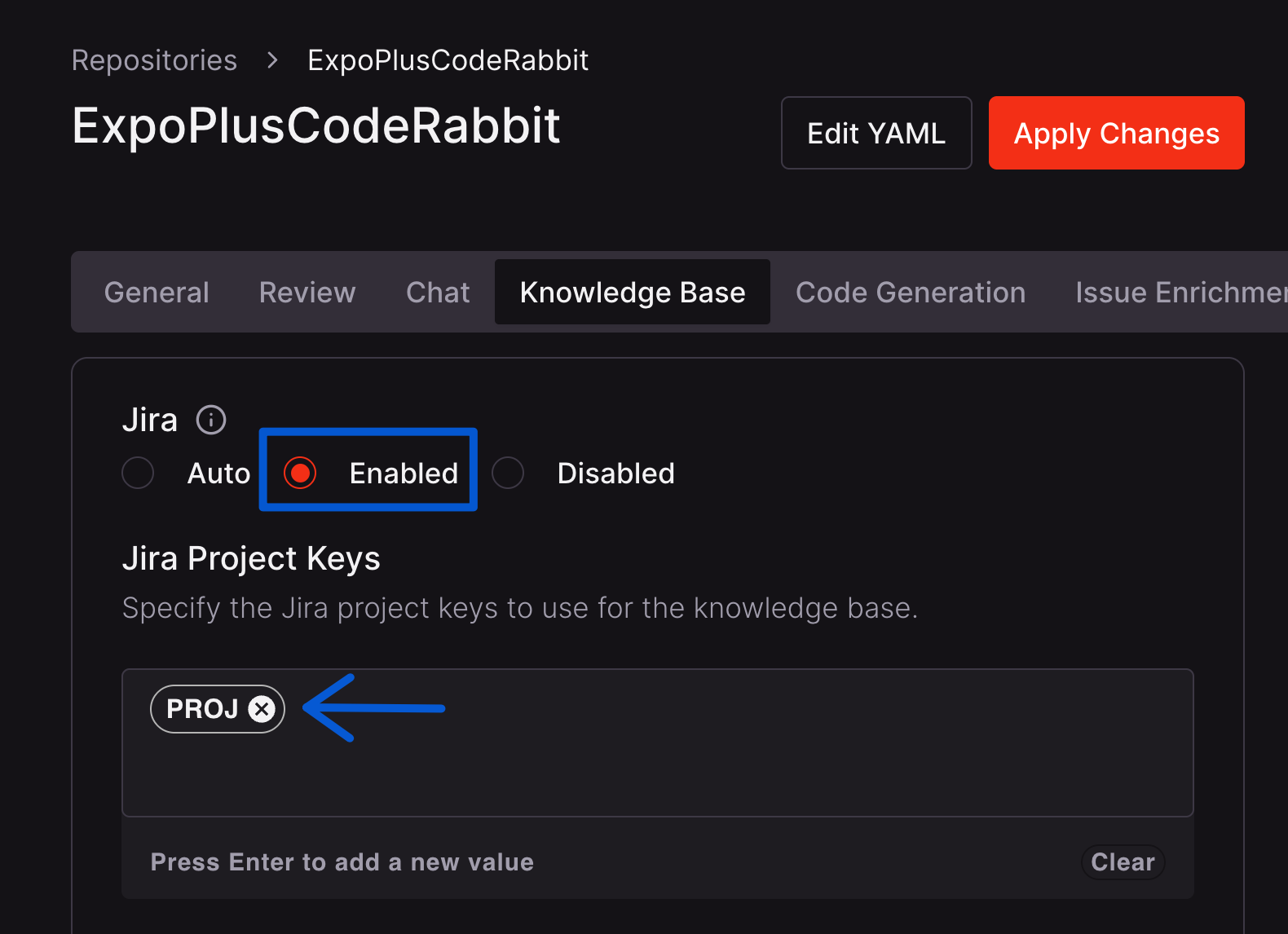
By default, Jira integration is enabled for private repositories and disabled
for public repositories. You can override this behavior by setting
knowledge_base.jira.usage: enabled and chat.integrations.jira.usage: enabled in your .coderabbit.yaml file or using the web interface. See the
Configuration reference for details.Example usage
Linking Jira issues to pull requests
To have CodeRabbit validate requirements from a Jira issue, include the issue URL in your pull request description:Creating Jira issues from reviews
During a code review, you can ask CodeRabbit to create a Jira issue by mentioning@coderabbitai in a comment:
chat.integrations.jira.issue_template as shown in Configure CodeRabbit for Jira.
Related resources
Requirement validation
Best practices for linking issues to pull requests
Issue Planning
Generate Coding Plans from issues for coding agents
Issue creation
Create issues directly from CodeRabbit reviews