

What you can customize
Content & data
Choose specific pull request information, comments, CI/CD status, and linked
issues to include in your reports.
Format & structure
Define report layout using markdown formatting, tables, bullet points, and
custom grouping patterns.
Filtering & sorting
Include or exclude PRs based on labels, status, team members, or custom
criteria you define.
Language support
Generate reports in multiple languages by specifying your preferred language
in the prompt.
Creating Custom Report Templates
Basic Structure
A custom report template consists of instructions that tell CodeRabbit what information to include and how to present it. Here’s a basic example:Example for different languages
Japanese:Available Data Points
Your custom reports can access the following PR information that you can reference in your prompts:Pull Request Status
Contained within the<pr_details> tag.
-
Merged: boolean (true/false) - Whether the PR has been merged -
Draft: boolean (true/false) - Whether the PR is in draft state -
State: string (“open”/“closed”) - Current state of the PR -
Mergeable: boolean (true/false) - Whether the PR can be merged -
Is stale: boolean - Whether PR has been inactive for over 168 hours -
PR Stage: string - The current stage of open PRs in Open or Draft state, can be one of:- “Needs Author Action” - PR requires author attention due to merge conflicts, draft status, or requested changes
- “Waiting for Author to Merge” - PR has approvals and is ready for author to merge
- “Waiting for Code Reviews” - PR is waiting for reviewers to approve
- undefined - PR is not in an open state (is merged or closed)
Basic Information
Contained within the<pr_details> tag.
Pull request number: number - The PR’s identifierTitle: string - PR titleURL: string - Link to the PRAuthor name: string - PR creator’s usernameCreated at: datetime - When the PR was createdLast activity: datetime - Most recent activity timestampClosed at: datetime (if applicable) - When the PR was closedSource branch: string - Source branch nameTarget branch: string - Target branch nameLabels: array of strings - All labels applied to the PRReviewers: array of strings - Assigned reviewers’ usernames
Summarized PR Details
-
<pr_description>: string - Contains the body of your pull request (aka the PR description at the top of the PR page). -
<file_changes_summary>: string - Contains a file by file summary of the changes made in the PR in markdown format. This summary is generated by CodeRabbit AI during the PR review process. This includes several sections for each file that was changed:filename: string - The name of the file that was changed.AI-generated summary of changes: markdown - An overall summary of the changes made in the file.Alterations to the declarations of exported or public entities: markdown - A more specific breakdown of the changes made to the file such as exactly what was added, removed, or modified.
Comments
-
<pr_comments>: array of comment objects - Contains all the comments made on the PR. -
<comment>: object - Each individual comment is wrapped in this tag and is an object with the following properties:<comment_author_username>: string - The username of the comment author.<comment_created_at>: datetime - The date and time the comment was created.<comment_updated_at>: datetime - The date and time the comment was last updated.<comment_body>: markdown - The content of the comment.
CI/CD Check Status
-
<pr_checks>: array of check objects - Contains all CI/CD checks for the PR. GitHub Only. -
<pr_check>: object - Each individual check is wrapped in this tag and is an object with the following properties:<pr_check_name>: string - The name of the CI/CD check.<pr_check_status>: string - The status of the check (e.g., “success”, “failure”, “in_progress”, “canceled”).<pr_check_url>: string - The URL to view the detailed results of the check.
Example prompt
Formatting options
CodeRabbit supports full markdown formatting in your custom reports:Text formatting
Bold, italic,
code, and regular text with headers using #, ##,
###.Lists & tables
Bullet points, numbered lists, and structured tables for organized data
presentation.
Links & blocks
Hyperlinks to PRs, code blocks for examples, and any other standard markdown
elements.
Headers and Titles
The name you give to each report in the CodeRabbit menu will be used for the first line of any report or the subject for emails. For example, if your report is namedExecutive Summary Template, then this string will appear on the subject of your emails and start of all message chains.
When using the Preview Report button in the CodeRabbit menu, the subject will begin with Preview: <report name>.
The reports will also have an overall title describing the report content such as Pull Request Summary Report (January 2025).
To change these details of this overall title you should include specific instructions in your custom prompt with examples such as:
Language Support
You can generate reports in multiple languages by specifying the ISO language code in your template. For example:Advanced Features
Filtering
Include specific filtering instructions in your template:Custom Grouping
Organize information using custom grouping rules:Optional Data Sources
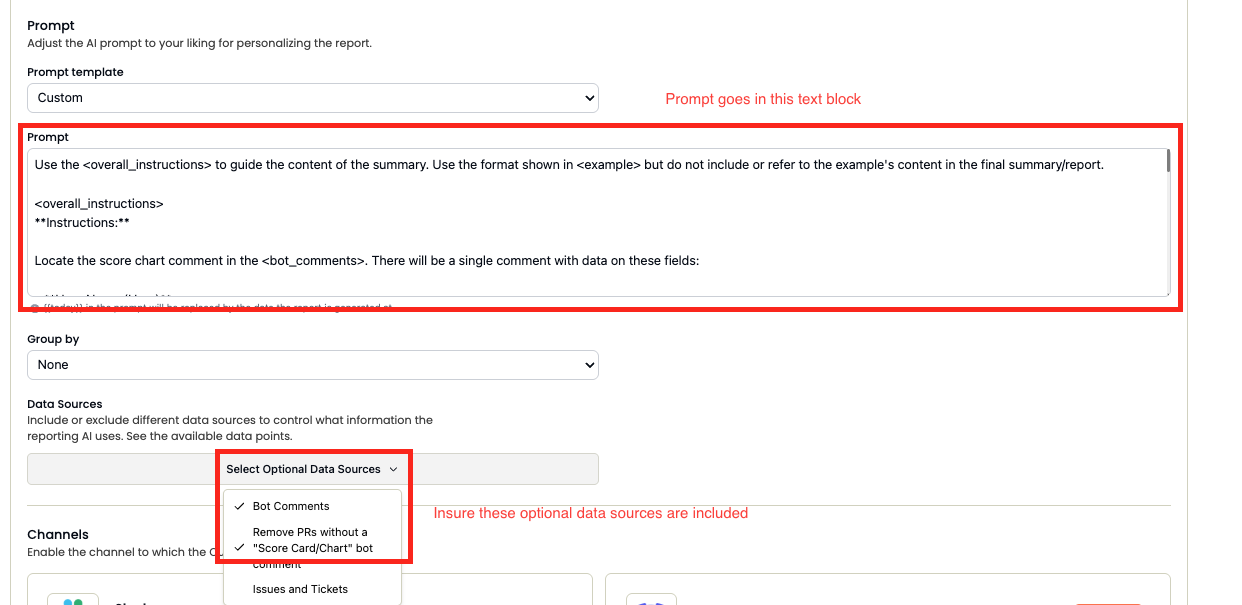
You can also include optional data sources in your custom reports. By default, CodeRabbit will not include the following data sources. In a custom report you will see the option to include these data sources by clicking theSelect Optional Data Sources button. This adds special XML tags to your prompt that allow you to include this data in your report.
Bot Comments
Bot comments are comments made by bots and CodeRabbit AI on a PR. To enable bot comments you must include the tag<include_bot_comments> in your prompt.
These are very similar in structure to regular user comments but with a few key differences:
-
<bot_comments>: array of comment objects - Contains all the comments made on the PR. -
<bot_comment>: object - Each individual comment is wrapped in this tag and is an object with the following properties:<bot_name>: string - The username of the comment author.<bot_comment_created_at>: datetime - The date and time the comment was created.<bot_comment_updated_at>: datetime - The date and time the comment was last updated.<bot_comment_body>: markdown - The content of the comment.
Issues and Tickets
Issues and tickets bring in conversations, descriptions, and comments from Jira and Linear as part of your report if the ticket is linked in your PR description. To enable issues and tickets you must include the tag<include_issues_and_tickets> in your prompt.
-
<issues_and_tickets>: array of issue objects - Contains all the linked issues and tickets. -
<issue>: object - Each individual issue is wrapped in this tag and is an object with the following properties:-
<issue_title>: string - The title or thread ID of the issue. -
<issue_url>: string - The URL to the issue. -
<issue_id>: string - The unique identifier of the issue. -
<issue_author>: string - The username of who created the issue. -
<issue_created_at>: datetime - The date and time the issue was created. -
<issue_updated_at>: datetime - The date and time the issue was last updated. -
<issue_body>: markdown - The content/description of the issue. This contains the following sections:<issue_description>: markdown - The description of the issue.<issue_comments>: array of comment objects - Contains all the comments made on the issue.
-
Remove PRs without a “Score Card/Chart” bot comment
This option gives you the ability to create a report limited only to pull requests containing a “Score Card” or “Score Chart” bot comment from CodeRabbit or other bots. To enable this option you must include the tag<pr_score_card> in your prompt.
IMPORTANT: This will automatically remove any pull requests from your reports if they do not contain a “Score Card” or “Score Chart” bot comment. Using this option without setting up a flow to create these comments will result in No new pull request activity in the last XYZ hours errors. Do not enable this option unless you have asked CodeRabbit to create a “Score Card” through a comment or implemented the “Score Chart” bot comment flow below.
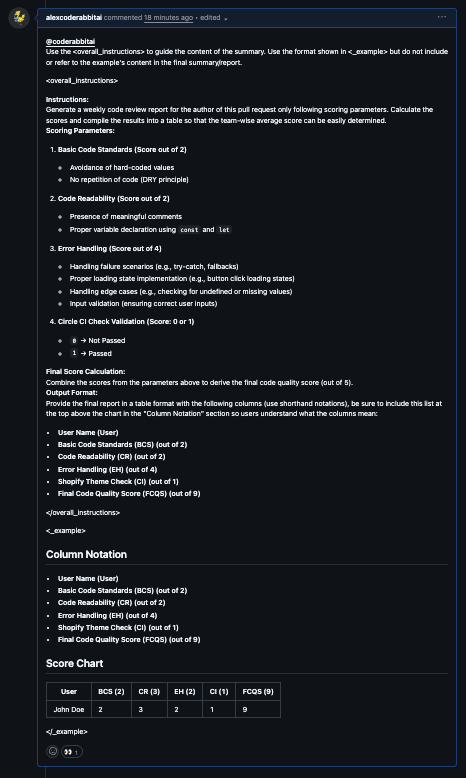
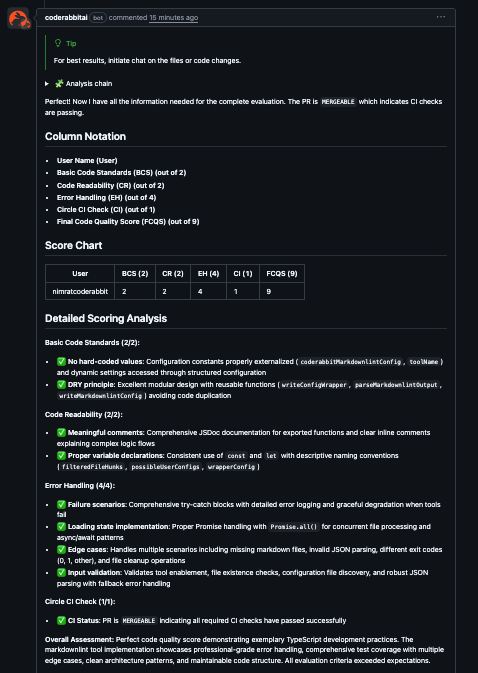
For example, you can ask CodeRabbit to check several conditions on a pull request and produce a “Score Chart”:
Click to view example User Score Card/Chart Comment:
Click to view example User Score Card/Chart Comment:
Click to view resulting Score Card/Chart bot comment:
Click to view resulting Score Card/Chart bot comment:
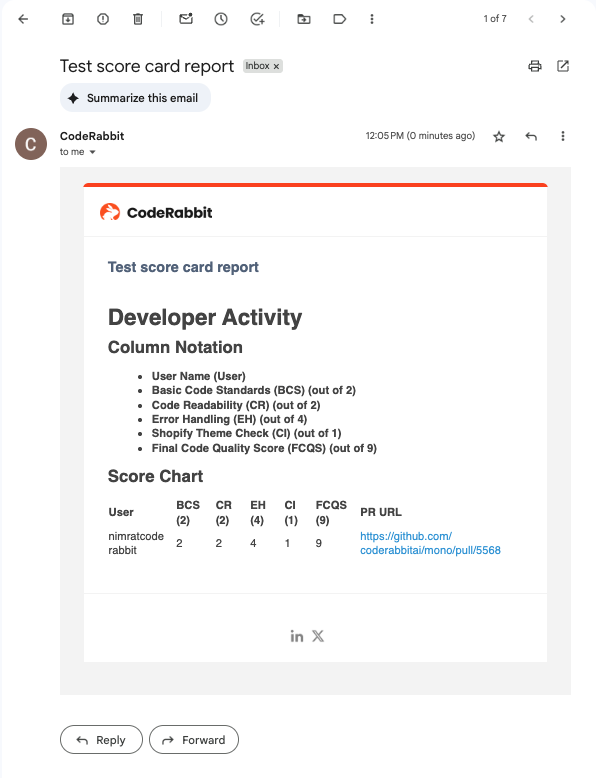
Click to view example Report Prompt when using Score Card/Chart:
Click to view example Report Prompt when using Score Card/Chart:
- The reporting bot only has access to your comments and summary (like a project manager) if you want to make a report looking for these score card/chart comments make sure the reviewer does this ahead of time.
- Only include checks for very specific scenarios, such as a specific check failing or using tabs vs spaces.
- Do not use general rules without explaining specifically what they mean. If you add “Ensure the pull request follows development best practices” you must define what “development best practices” actually mean or the AI will guess.
- Make one point for each specific check and make sure it’s a True/False condition.
- Instead of manually commenting on pull requests, you can use the GitHub Actions Bot to automatically comment on pull requests and trigger CodeRabbit score card/chart comments by including
@coderabbitaiin the comment.
Organization Statistics
Organization statistics provide comprehensive organization-level metrics that can be included in custom reports. This data is very similar to what you’ll find in your CodeRabbit dashboards - if you want dashboard data in your reports, use this option! To enable organization statistics, you must include the tag<include_org_stats> in your prompt.
The <organization_stats> block contains comprehensive organization-level metrics including individual PR details and high-level organization metrics, providing a complete picture of development activity and CodeRabbit’s impact across your organization.
Example Prompt:
📊 Basic Organization Information
- Organization Name: The organization’s display name
- Members: Total member count
- Active Repositories: Number of repositories with activity in the time period
- Total Reviews: Total number of reviews performed in the time period
- Total PRs: Total number of pull requests in the time period
- Report Period: Start and end dates for the reporting period
- Last Activity: Most recent activity date (if available)
- Total Suggestions: All CodeRabbit suggestions made
- Potential Issues: Issues identified by CodeRabbit
- Issues Found: Confirmed issues found
- Refactor Suggestions: Code refactoring recommendations
- Nitpick Suggestions: Minor improvement suggestions posted as inline review comments, which mostly come from the
assertivereview profile. Thechill(default) andquietprofiles put nitpicks in a collapsed section of the review summary instead. This count leaves those out, so it is often 0 on those profiles.
- Total Findings: All tool findings across all tools
- Actionable Errors: Errors that require action
- All Tools: Breakdown by tool and category showing:
- Tool name and category
- Count of findings
- Percentage of total findings
- Total Failures: All pipeline failures detected
- Errors: Critical pipeline errors
- PRs Created: The number of pull requests that this developer authored during the time period
- Comments: The total number of review comments (issue, refactor, and nitpick) generated by CodeRabbit for this developer’s reviews
- CodeRabbit Reviews Triggered: The number of times this developer triggered CodeRabbit reviews on pull requests
- Reviews Approved: The number of unique pull requests where this developer approved the changes
- Reviews Requested Changes On: The number of unique pull requests where this developer requested changes
- Reviews Commented On: The number of unique pull requests where this developer left comments (without approving or requesting changes)
- Total PRs Reviewed: The total number of unique pull requests where this developer performed any review action (approved, requested changes, or commented)
📈 Additional Metrics
- Active Users: Number of users who were active
- PRs Reviewed: Total PRs that were reviewed
- PRs Merged: Total PRs that were merged
- Total Suggestions Accepted: CodeRabbit suggestions that were accepted
- Issue Comments: Comments on potential issues
- Refactor Comments: Comments on refactoring suggestions
- Learnings Created: Number of learnings created
- Learnings Used: Number of learnings applied
- Docstrings Generated: Number of docstrings generated
- Chat Sessions: Number of chat sessions
Best practices
Be specific
Clearly define what should be included/excluded, use precise language to avoid ambiguity, and specify exact metrics you want to track.
Structure matters
Start with high-level summaries, use consistent grouping patterns, and include clear section breaks for better readability.
Keep it relevant
Focus on actionable information, avoid redundant data points, and consider your audience’s specific needs and workflows.
Optimize readability
Use appropriate formatting, include visual breaks, and maintain consistent styling throughout your reports.
Use examples
Include “do this” and “don’t do this” examples, demonstrate proper formatting patterns, and show concrete use cases.
Maintain consistency
Use
<overall_instructions> and <example> tag blocks to ensure consistent formatting across teams and report types.Add Examples for Consistent Formatting
Try to use<overall_summary> and <example> tag blocks to keep consistency across reports: