

Browse findings and nitpicks
Findings and Nitpicks appear below the Review view while it shows the current review or a review you opened from History. Each view’s header shows how many items are unresolved, for example “Findings 3”. Findings lists the review’s results grouped by file. Only files with findings appear, and a file stays listed after you resolve all of its findings. A file that is no longer in your changes shows “Previous review” instead of a Git status letter. Each file row has:- Open reviewed diff, which shows the file before and after, as CodeRabbit reviewed it.
- The number of unresolved findings in the file.
- A category icon and tag: Security & Privacy, Stability & Availability, Data Integrity & Integration, Functional Correctness, Performance & Scalability, or Maintainability & Code Quality. Findings without a category are tagged Potential Issue, Refactor Suggestion, or Nitpick.
- A title and a short description. Hover over the description to read all of it.
- Open in editor, which opens the file at the finding and expands its comment thread.
Read a finding in the editor
Each finding is a comment thread from CodeRabbit on the lines it refers to, marked with a rabbit icon in the gutter. Threads start collapsed; expand one to read the full finding. You can’t reply to a thread. The thread label combines the finding type and its severity, for example “Potential Issue | Major”. Severity is one of Critical, Major, Minor, Trivial, or Info. To expand or collapse every CodeRabbit thread in the current file, run CodeRabbit: Expand all or CodeRabbit: Collapse all. If you edited the code so that CodeRabbit can’t find the reviewed lines anymore, the thread doesn’t appear, and Open in editor shows “Could not highlight code. File has been modified since the review.” Run a new review to get findings for the current code.Act on a finding
The actions are icons in the comment thread’s title bar; hover over an icon to see its name. Some editors show the icons only while the pointer is over the thread.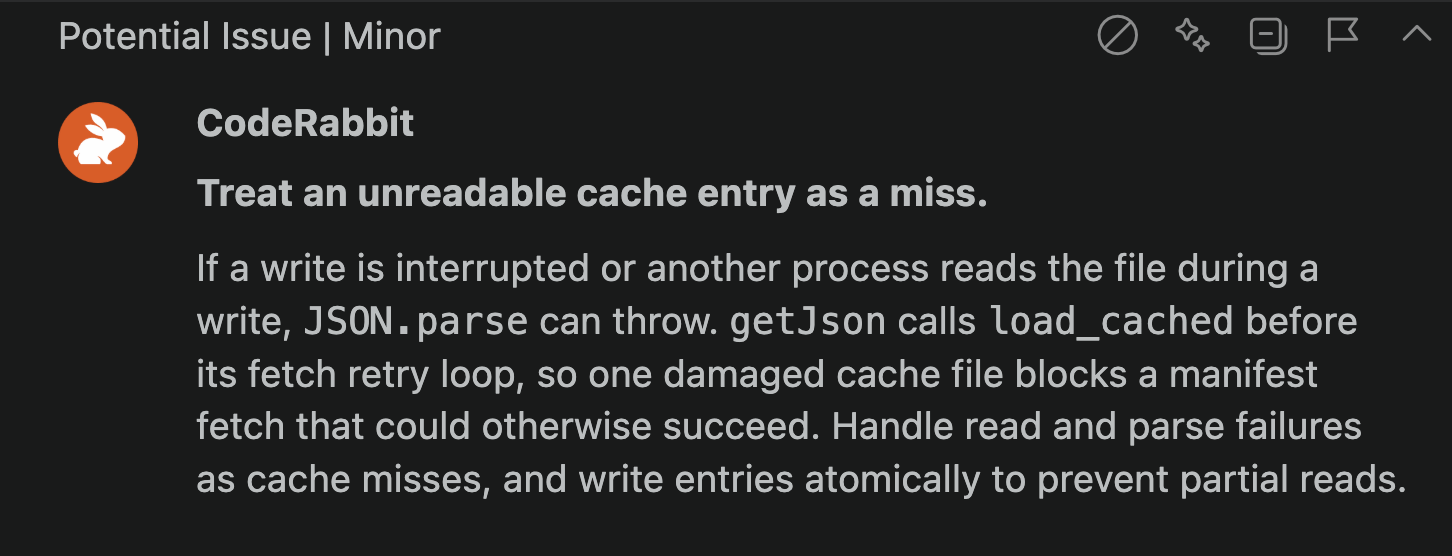
Thread actions, from left: Ignore, Fix with AI, Collapse all, and Provide feedback. The arrow at the far right is the editor's own collapse control.
A finding with a code suggestion also shows an Apply suggested diff link in the comment, which does the same. Many findings have no suggestion and show neither.
Resolved findings stay in Findings and Nitpicks with their status, and ignored ones are struck through. To reopen one, select Unresolve. Its thread comes back in the editor, expanded. If the code changed after the review, the extension can’t place the thread again; see Could not unresolve comment.
Give feedback
Feedback is available with CodeRabbit Cloud only, not with self-hosted CodeRabbit.- On one finding: select Provide feedback on its thread and pick a reason: “Comment is not helpful”, “Comment is not true”, “Comment is poorly formatted”, “Comment is attached to the wrong line(s)”, or “Comment suggestion is invalid”. You can then add optional remarks.
- On the extension: select Give feedback on the Review view title bar or at the bottom of the view to open a short survey.
Revisit earlier reviews
History lists your earlier reviews of the current repository and branch, including cancelled and failed ones, so you can return to findings after starting a new review. Open it with History next to the changed-file count, or run CodeRabbit: Review History. Each row shows the review’s status, the “Automatic” label for reviews started by a commit, the date, and the number of unresolved findings. The review currently shown isn’t listed. Select a review to load its results into Findings and Nitpicks. Use ← History to go back to the list, and ← Review to go back to the current review. When you switch branches, the editor shows the unresolved findings of the branch you switched to, and History lists that branch’s reviews. To delete reviews, use the trash icon on a review, or Clear previous reviews for all the reviews in the list. This also removes their comment threads from the editor. Clearing a branch’s reviews also makes the next review cover the whole branch again; see Review again after more changes.Clearing reviews in History happens immediately, without a confirmation.
What stays after a reload
When you reload the window or restart the editor:- History and the status of each finding stay as they were.
- Unresolved findings come back as comment threads in the editor.
- Nitpick threads don’t come back. Select Open in editor in Nitpicks to show one again.
- A review that was running is cancelled. Start it again.
What’s next
Fix with AI
Send one finding or a whole review to your coding agent.
Review again after more changes
Learn how follow-up reviews cover only what changed since the last one.
Troubleshooting
Fix missing comments, failed suggestions, and other problems after a review.