

- Select the CodeRabbit icon in the activity bar to open the CodeRabbit sidebar.
- In Changes to review, pick a scope. A new repository starts with All changes, which includes the commits on your branch. To review only the work you haven’t committed, pick Uncommitted changes.
- Select the review button.
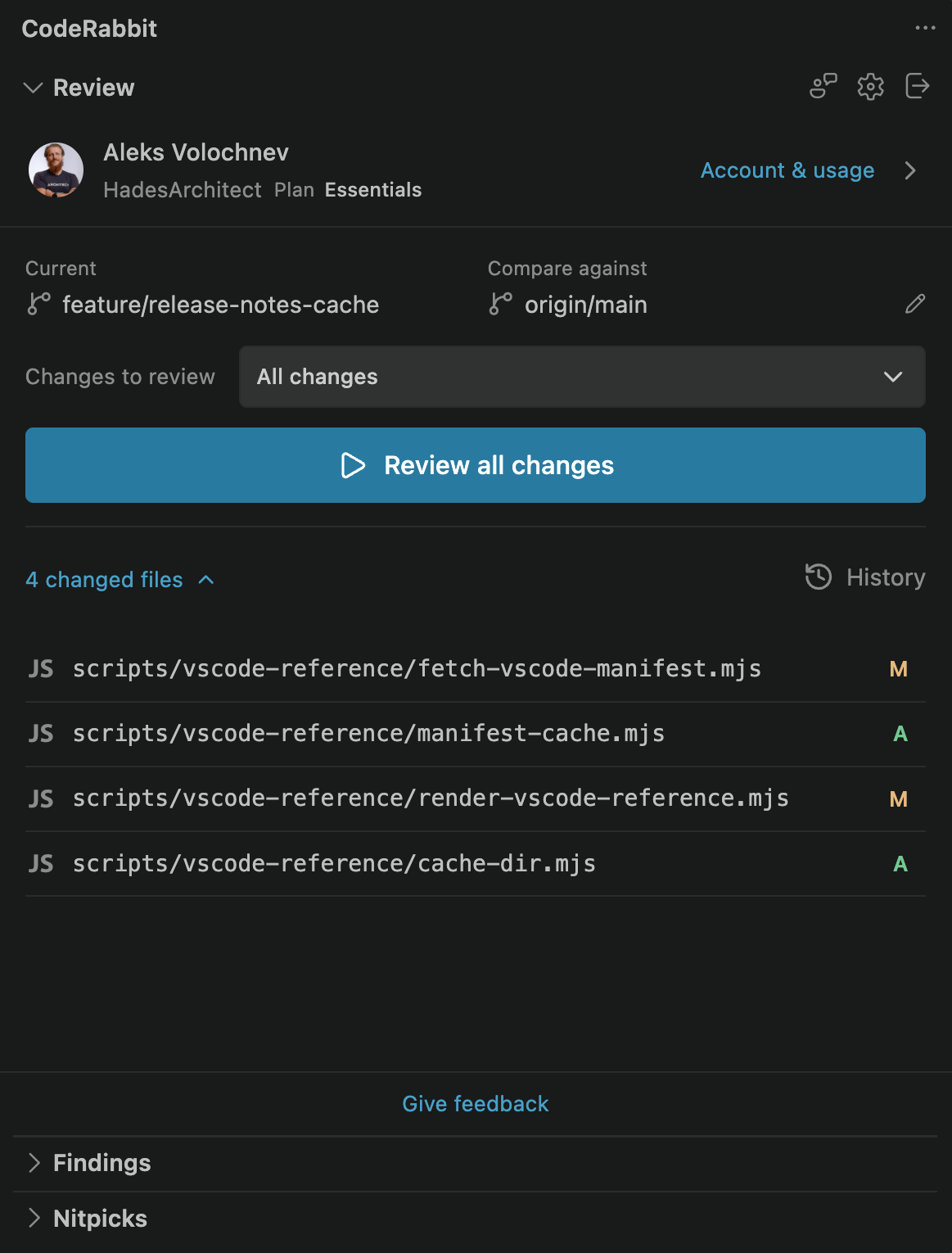
The Review view on a feature branch, ready to review all changes against origin/main
Before you start
You need to be signed in and to have a folder with a Git repository open. When something is missing, the Review view says so and offers a button:The Review view
Select the CodeRabbit icon in the activity bar to open the CodeRabbit sidebar. It holds the Review view and, once a review has results, the Findings and Nitpicks views. The Review view, from top to bottom:- Account & usage: your organization, plan, and usage. CodeRabbit Cloud only; see Check your plan and usage.
- Repository, with Switch repository and Switch worktrees: shown only when the workspace has more than one Git repository or worktree.
- Current: the branch you are on. A detached HEAD shows a short commit hash.
- Compare against: the base branch.
- Changes to review: the review scope.
- The review button, labeled for the scope, such as Review all changes.
- The “N changed files” list, with a Git status letter on each file. Select the count to collapse or expand the list.
- History: your earlier reviews of this branch. See Revisit earlier reviews.
Choose what to review
Pick a scope
Pick the scope in Changes to review:
A scope with nothing to review is disabled, and the menu shows the reason, such as “No uncommitted changes to review”. The extension remembers your scope for each repository.
Pick the base branch
The base branch is the branch your work merges into, usuallymain. The extension picks the first of these that exists:
- The base branch you chose earlier for this repository.
origin/HEAD.- The first local branch named
main,master,develop, ordevelopment. - The branch Git records as the base of your current branch.
origin/main, is only as current as your last git fetch, so fetch first if the base branch has moved on the remote.
A review always covers the branch you have checked out. To review a different branch, check it out first.
Select files
In the Uncommitted changes scope, each file has a checkbox, and the button reads “Review N selected files”:- Use Search files to filter the list, and Select all or Clear all to change every checkbox. While a search is active, these become Select shown and Clear shown.
- New files are selected when they appear. Files you cleared stay cleared.
- Select a file name to open its diff, titled “Changes being reviewed:” followed by the file name.
.env from being sent, see Keep secrets out of reviews.
Start a review
Select the review button, or run CodeRabbit: Start Review from the Command Palette. Both review the scope selected in the Review view. In Uncommitted changes, the button reviews only the files you selected, while the command reviews every uncommitted file. Before the review starts, the extension may stop to ask you something:- “The organization is still updating. Try the review again shortly.” appears while the extension matches your repository to an organization. Start the review again after a moment. See Choose the organization for reviews.
- If a review is already running, “A review is already in progress. What would you like to do?” offers Continue with existing review and Cancel existing review and start new one.
- If you don’t have a seat in the organization, a dialog offers Start free review. See Seats and limits.
Seats and limits
This section applies to CodeRabbit Cloud.Without a seat
If your organization’s plan uses seats and you don’t have one, starting a review opens this dialog:Your account does not have an active CodeRabbit seat for the ”…” organization. Start a free review? Free reviews are limited to 3 per hour and do not use the organization’s plan, settings, or credits.Select Start free review to continue, or ask an organization administrator for a seat; see Seat assignment. A free review without a seat is not the Free plan. On the Free plan, you don’t need a seat, and this dialog doesn’t appear. If every seat in the organization is assigned, the review doesn’t start; see All seats in the organization are assigned.
Hourly limits
IDE reviews have their own hourly limit per developer, set by your plan and counted separately from pull request reviews and CLI reviews. The IDE column in Rate limits lists the number for each plan, including Free. Automatic reviews after a commit count toward it. The hour is rolling, so the limit doesn’t reset all at once on the hour: each review counts for one hour after it starts, then frees its place. The adaptive limits that can lower the pull request review allowance after heavy use don’t apply to IDE reviews. When you reach the limit, the review doesn’t run, and “Rate limit exceeded. Wait … before making another request.” appears with the waiting time. If your organization uses usage-based reviews and lets members choose when to use them, the message also gives the number of billable files and the most the review can cost, and offers Review with credits. Selecting it runs the review right away and bills it to your organization’s usage. During a promotion, the button reads Run review for free instead. If the organization changed since the offer, the extension asks you to check the selected organization and start the review again. Free reviews without a seat can’t use credits.File limits
A review can include up to 300 files with a paid seat or a trial, and up to 150 files on the Free plan and for free reviews without a seat. The count is the files left after path filters, which CodeRabbit applies after the upload: only the files changed since the last review for a follow-up review, and only the files you selected in Uncommitted changes. The extension doesn’t warn you before it sends the files. A review over the limit is skipped with “Too many files!”; see troubleshooting for ways to fit.Review automatically after each commit
coderabbit.autoReviewMode controls what happens when a new commit lands on your branch:
Any change to the current commit of the repository selected in the Review view counts, whoever makes it: the Source Control view, a terminal, a coding agent, or another Git tool. Amending, rebasing, and cherry-picking count too. Only commits dated within the last 30 seconds trigger a review, so checking out or pulling older commits doesn’t start one.
An automatic review always covers committed changes, whatever Changes to review shows, and is labeled “Automatic” in the Review view and in History. Each one counts toward your hourly limit.
Change the setting in the settings reference.
Follow a review in progress
While a review runs, a bar at the top of the Review view shows “Review in progress” and a Stop Review button. Progress steps appear as CodeRabbit reaches them, such as “Setting up”, “Preparing sandbox”, “Building code graph”, “Processing tool runs”, “Analyzing changes”, and “Reviewing files”. Findings arrive while the review runs, so you can start reading before it finishes. The first one shows a notification, with Show Review when the CodeRabbit sidebar is hidden. A review ends in one of these states:- “Review complete”.
- Completed with warnings: the view shows the warning and “Files reviewed: X/Y”.
- “Review failed”: the view shows the reason. Findings received before the failure stay in the results.
- Stop Review.
- Reloading the editor window.
- Switching branches. The review appears as cancelled in that branch’s History, and its results aren’t added to the editor.
Get notified when a review finishes
Turn these on in the settings reference if you switch to other work while a review runs:coderabbit.completionNotifications: shows “CodeRabbit review completed” with Show Review when a review finishes. On a local macOS desktop, you also get a Notification Center alert, which macOS may attribute to Script Editor; allow notifications for Script Editor if you don’t see it.coderabbit.reviewCompletionSound: plays a chime when a review completes. It plays only if you opened the CodeRabbit sidebar in that window.
Review again after more changes
After a review completes on a branch, the next review on that branch is an incremental review, which covers only what changed since the last commit that review covered:- In All changes and Committed changes, the changed-file list shrinks to match.
- In Uncommitted changes, the list still shows every uncommitted file, but the review sends only the files whose content changed since the last review.
origin/main ahead.
To run a full review at any other time, clear the branch’s earlier reviews in History, then start a review. Clearing deletes those reviews and their findings. See Revisit earlier reviews.
A new review doesn’t close the findings of earlier reviews. Their unresolved findings stay in History and as comment threads in the editor until you resolve them, while Findings and Nitpicks show the new review’s results. Ignore isn’t sent to CodeRabbit, so a later review can raise an ignored finding again when it reviews that code, for example after you change the file or in a full review.
What gets reviewed
The extension reviews the changes Git reports, with paths relative to the workspace folder you opened. Opening a folder inside a larger repository works. Some files are never reviewed:- Built-in exclusions that you can’t change: build output and dependency folders such as
dist/andnode_modules/, lockfiles, minified and source map files, generated code folders, and binary, media, archive, and data files. - Untracked files that Git ignores, while
coderabbit.respectGitIgnoreis on. Tracked and staged files stay eligible whatever their ignore status. See the settings reference. - Files larger than 5 MB, and files whose diff is empty. They are skipped without a message.
.coderabbit.yaml also apply to its pull request reviews.
Files that hold secrets, such as .env, aren’t excluded by name; see Keep secrets out of reviews. The data and privacy page lists what a review uploads.
Which review configuration applies
This section covers the CodeRabbit configuration that shapes the review itself. For the extension’s own editor settings, see Settings and commands. Each review uploads the first of.coderabbit.yaml, .coderabbit.yml, or .coder.yaml at the root of the workspace folder you opened, even when you haven’t changed it. When you open a folder inside a larger repository, that is the folder’s root, not the repository’s. The extension reads it from disk when the review starts, so saved edits count and unsaved ones don’t. CodeRabbit layers it over your organization’s settings for the repository, or over the organization-level settings when CodeRabbit doesn’t know the repository. This follows the usual .
IDE reviews use a subset of that configuration:
Free reviews without a seat ignore all of these and use CodeRabbit’s default configuration.
What’s next
Work with findings
Read findings in the sidebar and editor, apply suggestions, and revisit earlier reviews.
Fix with AI
Hand findings to GitHub Copilot, Claude Code, Codex, or another coding agent.
Settings and commands
Look up every extension setting and Command Palette command.