🐰 New: Triage — a self-updating cross-repository queue that prioritizes pull requests by value and risk, so you always know what to review next. Now in beta! Explore Triage →
Turn issues into comprehensive Coding Plans ready for your favorite coding agent or IDE copilot. Works with GitHub, GitLab, Azure DevOps, Jira, and Linear!
Issue Planner is one way to use CodeRabbit Plan. You can also create plans directly using free-form descriptions, PRDs, or design specs. See the full CodeRabbit Plan documentation for an overview of all options.
CodeRabbit analyzes your issues, specifications, and project codebase to generate Coding Plans you can hand off to any coding agent or IDE copilot. Because CodeRabbit deeply understands your codebase through continuous analysis, each plan is tailored to your architecture and conventions, covering codebase research, step-by-step tasks, and agent-ready prompts.
The recommended way to use issue planning is to enable auto-planning on your platform so that Coding Plans are generated automatically whenever issues match the conditions you configure. Refer to the platform-specific guides above to set up auto-planning.To generate a plan on demand, comment @coderabbitai plan on any issue.
How you view and refine Coding Plans depends on your platform:
GitHub & GitLab
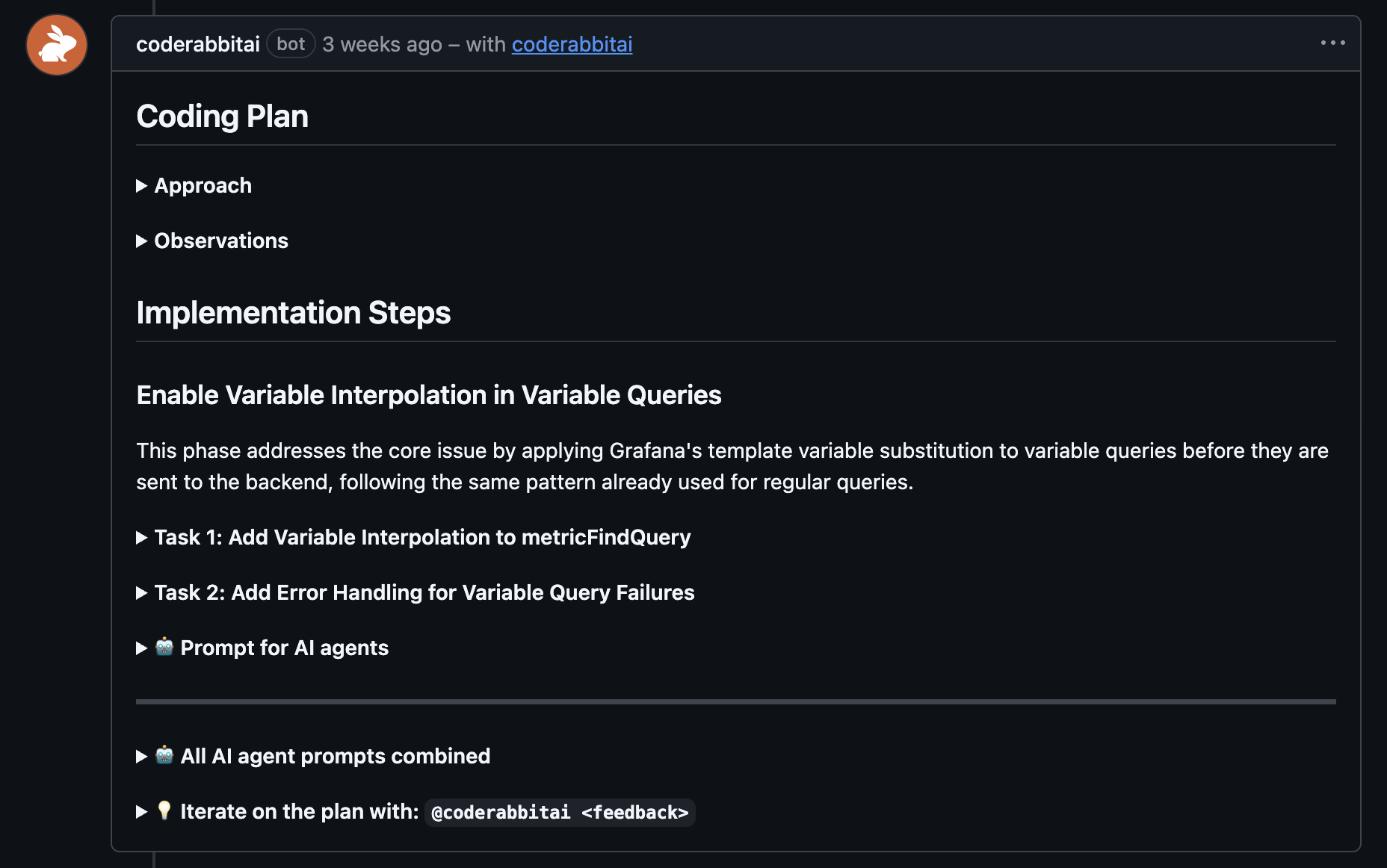
The full Coding Plan is posted as a comment directly on the issue. Reply to
the plan comment to refine details, challenge design choices, or request
changes.
Coding Plan posted as a comment on a GitHub issue
Azure DevOps, Jira & Linear
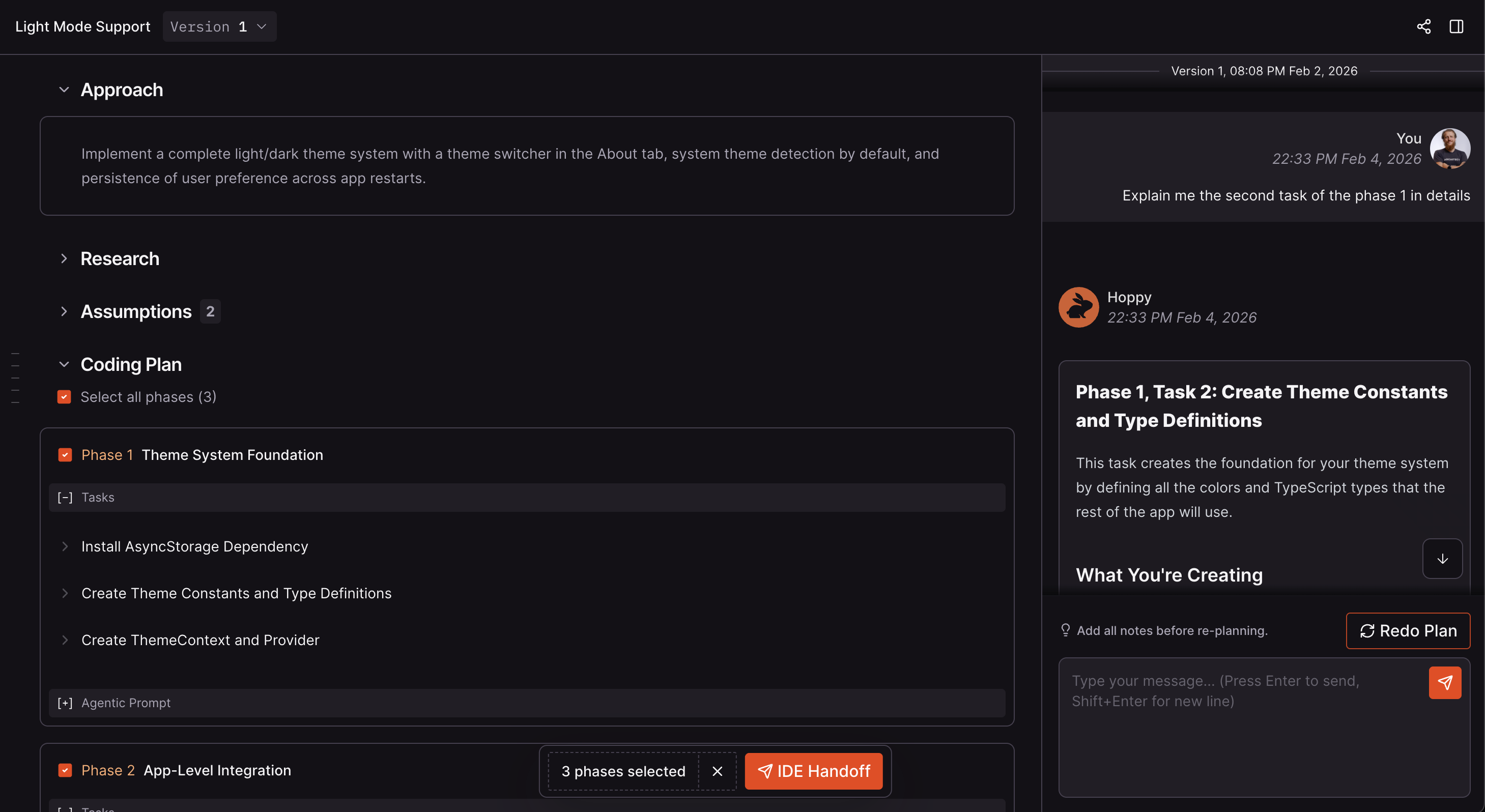
The Coding Plan is available in the CodeRabbit web app. Use the chat
panel on the right to iterate on the plan before handing off the finalized prompts to
your coding agent.
2-3 sentence overview of the implementation approach
Research
Deep codebase analysis leveraging CodeRabbit’s project knowledge, identifying relevant files, patterns, dependencies, and architectural decisions specific to the project
Design Choices
Decisions made during planning with rationale for each
Phases
Logical chunks of work that should be done together
Tasks
Individual tasks within each phase
Agent Prompt
Machine-readable instructions for coding agents (per phase and combined)
Chat with CodeRabbit to ask questions, request changes to specific tasks or phases, challenge design choices, or get clarification on implementation details. CodeRabbit responds and updates the plan accordingly. See the platform-specific guides for details on how chatting works on your platform.
Once you’re satisfied with a Coding Plan, copy the agentic prompts and paste them into your preferred coding agent (Claude Code, Cursor, GitHub Copilot, etc.). Depending on the platform, you can also hand off directly through the CodeRabbit IDE extension or ask an agent with direct platform access (for example, GitHub or GitLab MCP) to fetch the issue and execute CodeRabbit’s plan. See the platform-specific guides for handoff options.Organizations with access can open an eligible plan as a coding task, approve it, and have Coding Agent implement it. See Start from an approved plan.
How is CodeRabbit different from using ChatGPT or coding agents for planning?
Any AI agent or LLM can write an implementation plan. The difference is in the quality and context behind that plan:
Deeper codebase understanding - When an AI agent generates a plan, it typically reviews only a handful of files. CodeRabbit’s Coding Plans are grounded in deep codebase understanding through continuous code analysis and an extensive knowledge base. This means plans reference the right files, follow your established patterns, and integrate seamlessly with your existing code.
Access to issues and better context - CodeRabbit works with issue trackers, surfacing relevant related issues, even when the assigned engineer isn’t aware of them. This broader context ensures plans account for ongoing work, previous decisions, and the full scope of your project’s direction.
Collaborative review - CodeRabbit plans are available for review by other engineers and product owners. Team members can discuss, challenge design choices, and refine plans together before implementation begins.
Accountability and history - Every plan version is preserved. You can track what was planned, when it was planned, and why decisions were made. This audit trail provides accountability and helps teams understand the evolution of features over time.