

https://example.ghe.com should also use the Self-Hosted GitHub setup flow. Standard GitHub.com organizations should use the GitHub guide instead.
For an overview of all supported Git platforms, see Platform overview.
If your GHES instance cannot accept inbound network access from CodeRabbit, see the CodeRabbit Reverse Tunnel reference for the private-network connectivity option.
Integration overview
The GitHub Enterprise Server integration requires several components working together:OAuth App
Handles user authentication and login flow
GitHub App
Provides repository access and webhook functionality
Webhook Configuration
Enables real-time event processing
Network Access
Allows CodeRabbit to communicate with your instance
Setup process
Follow these steps to integrate CodeRabbit with your GitHub Enterprise Server:1
Initialize CodeRabbit connection
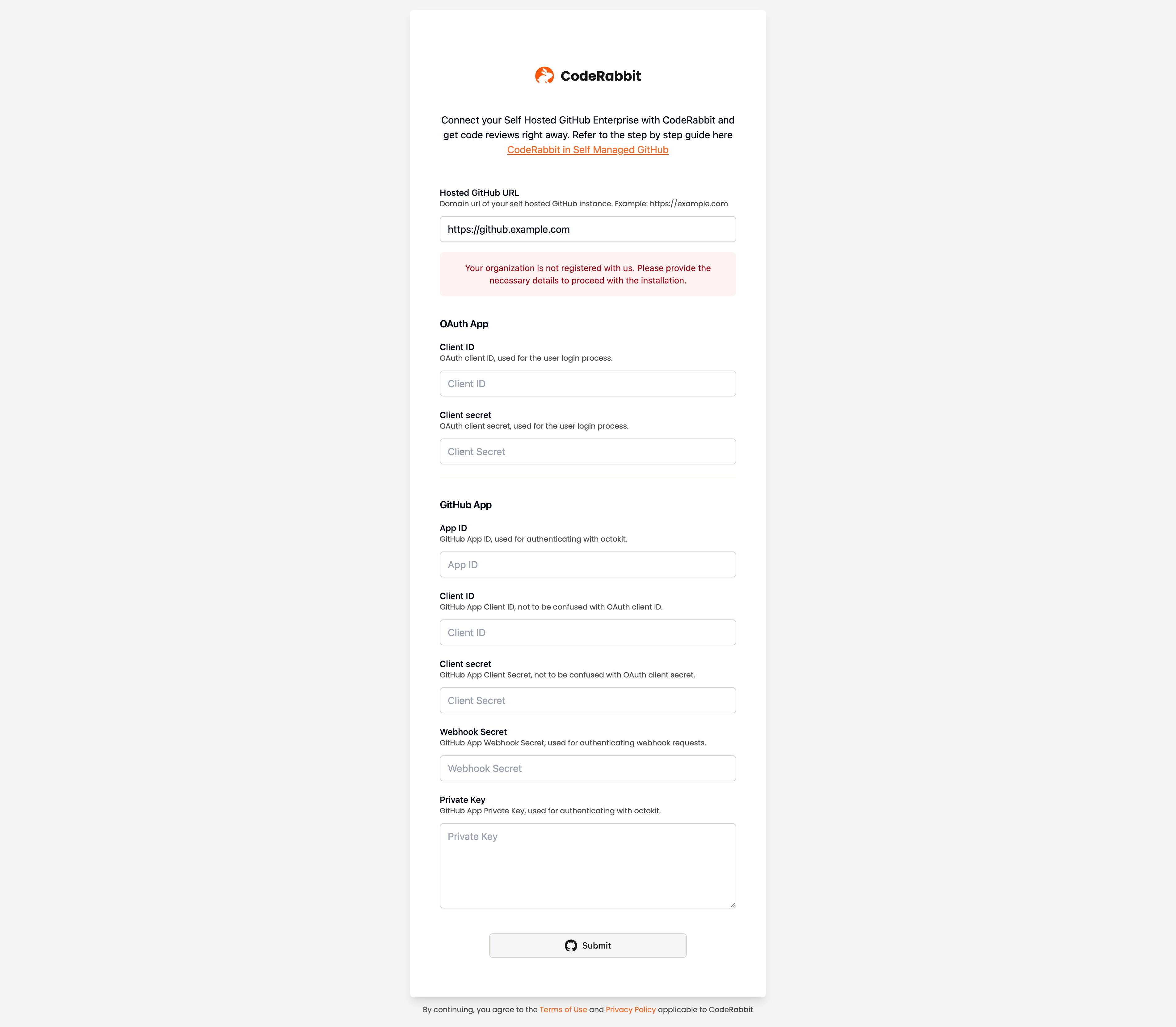
Visit the CodeRabbit login page and select Self-Hosted GitHub.Enter the URL of your GitHub Enterprise Server instance and click submit. CodeRabbit will check for existing configurations and either:
- Start the login process if your instance is already configured
-
Prompt for additional setup details if this is a new integration
2
Create GitHub OAuth App
Navigate to your GitHub Enterprise Server instance and create an OAuth App for user authentication.Configuration steps:
For detailed instructions, see GitHub’s official documentation on creating an OAuth App.
- Sign in to your GitHub Enterprise Server as an administrator
- Navigate to Settings → Developer settings → OAuth Apps
- Click New OAuth App
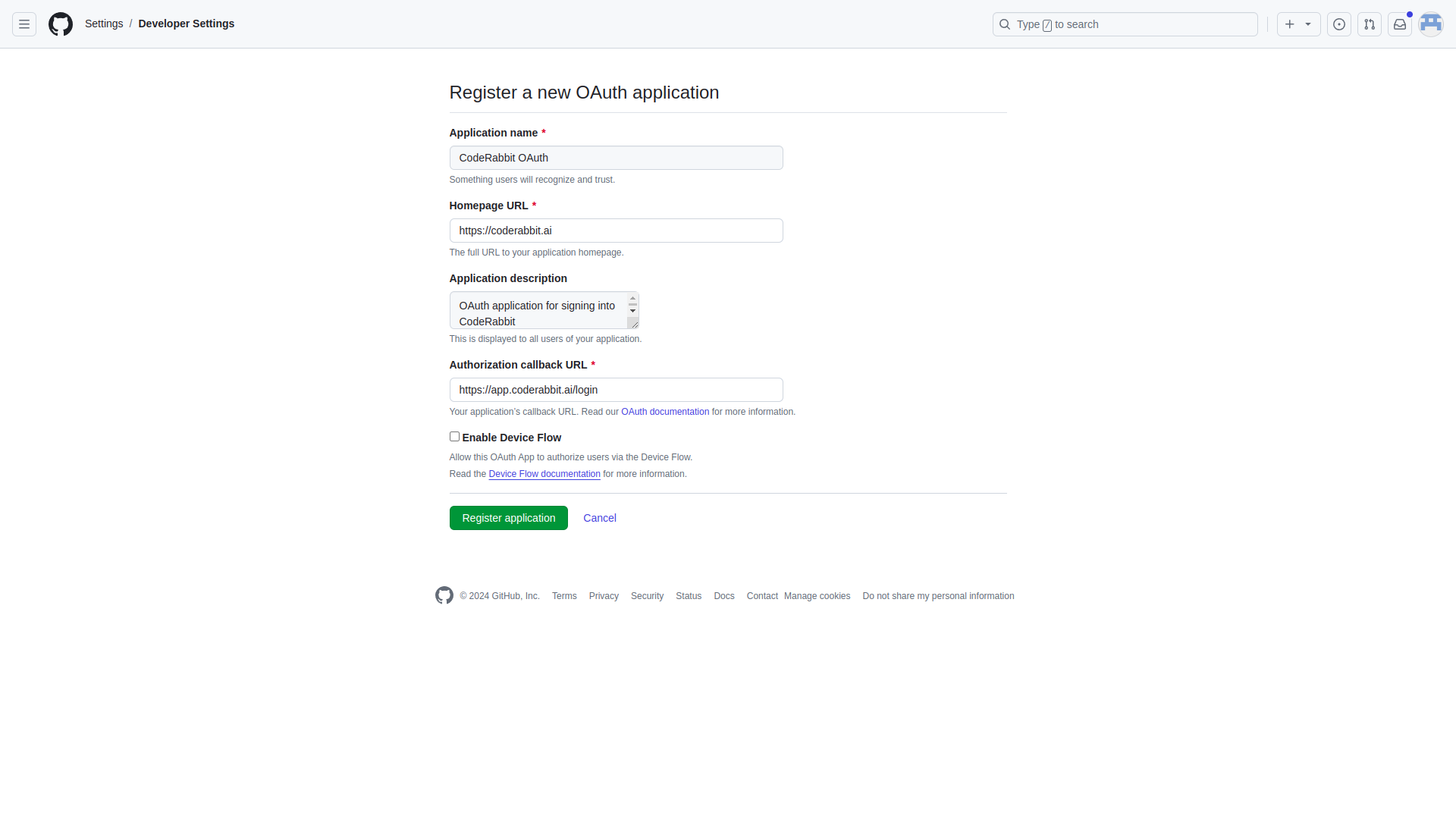
- Configure the OAuth App with these exact settings:
-
Click Register application
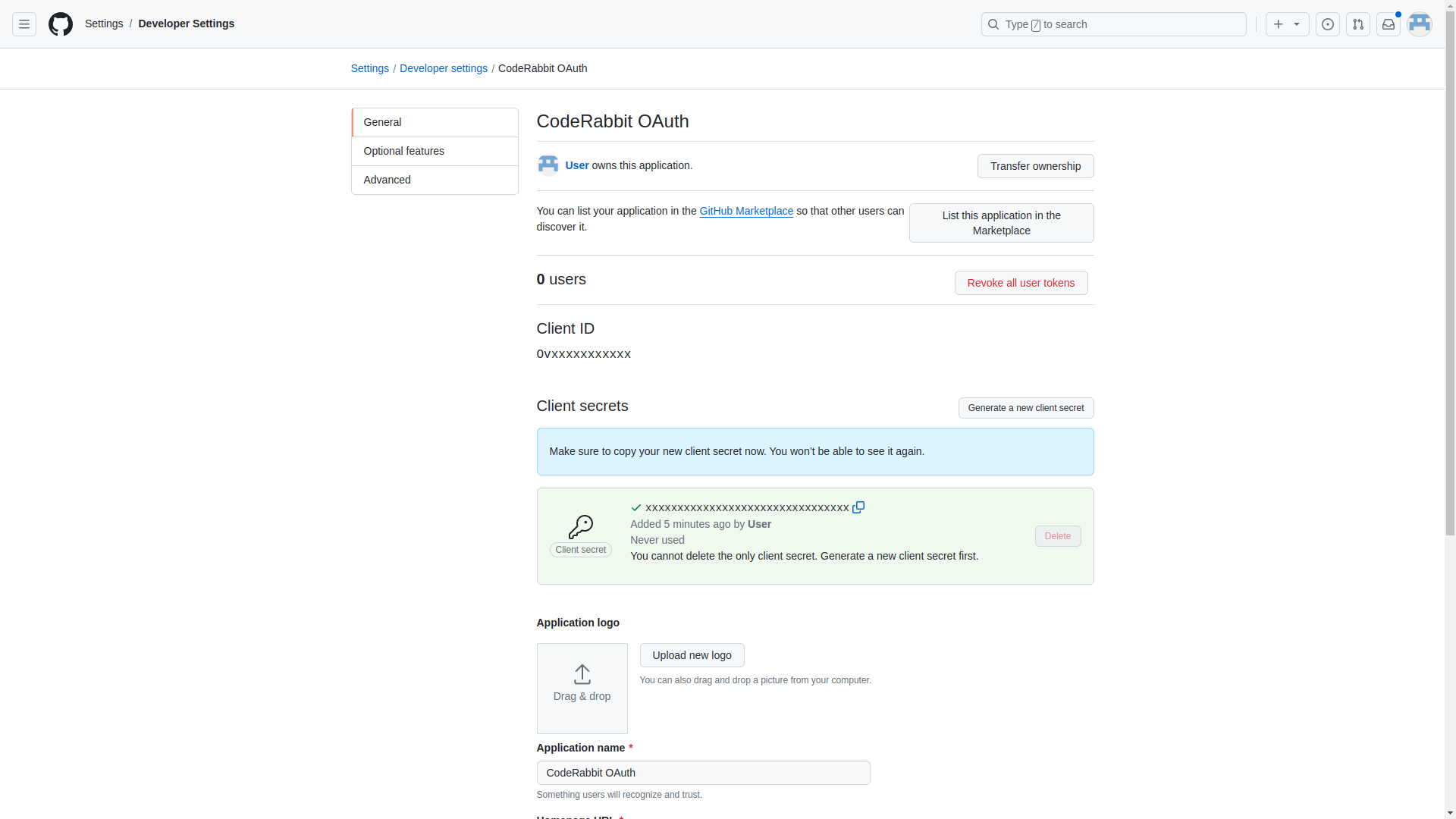
- Click Generate a new client secret under the ‘Client secrets’ section
-
Copy and securely store the following credentials:
- Client ID
- Client secret (visible only once)
3
Create GitHub App
Create a GitHub App to enable CodeRabbit’s repository access and webhook functionality.App configuration:
For detailed instructions, see GitHub’s official documentation on registering a GitHub App.
- Navigate to Settings → Developer settings → GitHub Apps
- Click New GitHub App
- Configure the basic app settings:
- Basic Information
- Webhook Configuration
- Repository Permissions
- Organization & Events
- Click Create GitHub App
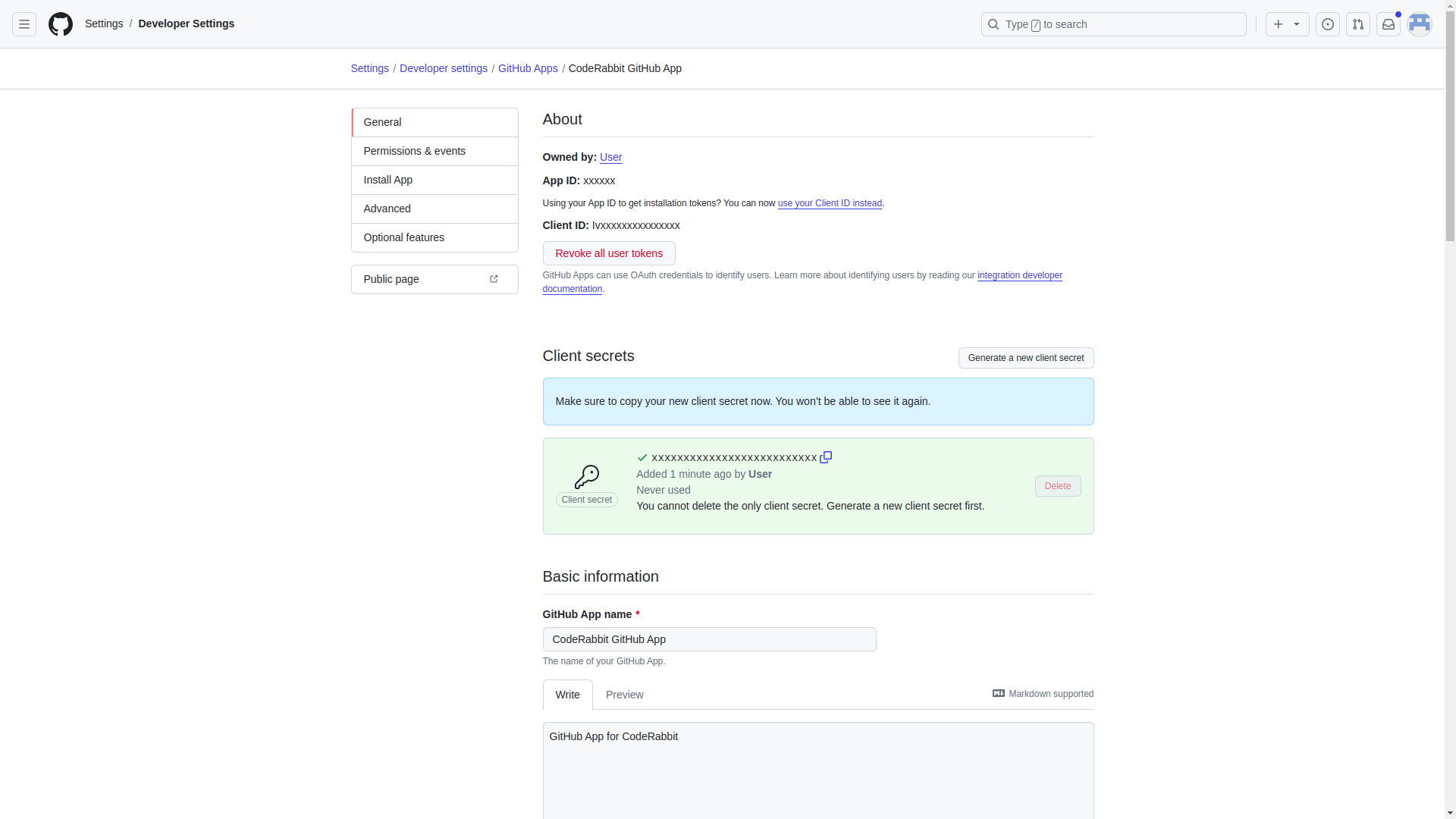
- Client Secret: Click Generate a new client secret and copy it immediately
- Private Key: Click Generate a private key and download the PEM file
- Note the App ID and Client ID displayed on the page
Required credentials checklist
Required credentials checklist
Make sure you have saved all of these:
- ✅ App ID
- ✅ Client ID
- ✅ Client secret
- ✅ Webhook secret
- ✅ Private key (PEM file)
4
Complete CodeRabbit setup
Submit all the credentials you’ve gathered to complete the integration setup.In the CodeRabbit onboarding form, enter the following information:
Click Submit to complete the setup. CodeRabbit signs a short-lived App token with the submitted GitHub App credentials, calls the target server’s App identity endpoint (
GitHub instance configuration
GitHub instance configuration
- Host URL: Your GitHub Enterprise Server URL. Use HTTPS for a direct connection, and make sure the host resolves to a reachable, non-restricted address. CodeRabbit rejects the configuration before setup completes when a direct host resolves to a restricted address. Private GitHub Enterprise Server hosts connected through the CodeRabbit Reverse Tunnel remain supported; verification uses the approved reverse-tunnel gateway route instead of rejecting the private canonical host.
OAuth App credentials
OAuth App credentials
- OAuth Client ID: From Step 2
- OAuth Client Secret: From Step 2
GitHub App credentials
GitHub App credentials
- GitHub App ID: From Step 3
- GitHub App Client ID: From Step 3
- GitHub App Client Secret: From Step 3
- GitHub App Webhook Secret: From Step 3
- GitHub App Private Key: Upload the PEM file from Step 3
GET /app), and confirms the App works before saving the instance and starting the login process. The submitted credentials must work at creation time; placeholder, malformed, mismatched, or otherwise unverifiable credentials cannot be saved first and corrected later. On subsequent visits, your setup will be automatically detected for direct login.5
Install the GitHub App
Install the GitHub App to your organizations to enable CodeRabbit access to repositories.
- Navigate to your GitHub App in GitHub Enterprise Server
- Click the Install App tab
- Select the organization(s) where you want to install CodeRabbit
- Choose repository access:
- All repositories (recommended for full integration)
- Selected repositories (for limited access)
- Click Install
6
Configure network access
Ensure your GitHub Enterprise Server can communicate with CodeRabbit by configuring network access.IP Allowlisting:If your instance requires IP allowlisting, add these CodeRabbit IP addresses to your firewall:
Troubleshooting
Who should create the OAuth App and GitHub App?
Who should create the OAuth App and GitHub App?
The OAuth App and GitHub App should be created by a user with administrative privileges on the GitHub Enterprise Server instance, or by an enterprise owner for a GitHub Enterprise Cloud data-residency host ending in The public GitHub Enterprise setup flow proves control of a working App on the target server. It does not prove or require site-administrator status when the instance is created. Site-administrator or enterprise-owner tokens apply later when validating or resetting instance credentials.
.ghe.com. This user will be responsible for:- Managing the CodeRabbit integration
- Handling app installations across organizations
- Troubleshooting permission issues
The administrator who creates these apps will have access to manage CodeRabbit’s integration settings.
Which token should I use when resetting instance credentials?
Which token should I use when resetting instance credentials?
When CodeRabbit asks you to validate or reset Self-Hosted GitHub instance credentials, the required token depends on your host type:
GitHub Enterprise Cloud data-residency hosts do not expose the GitHub Enterprise Server
site_admin role. For *.ghe.com hosts, CodeRabbit validates enterprise-owner access instead.GitHub App verification fails
GitHub App verification fails
Setup can stop if the GitHub App private key is invalid, the App cannot be verified on the target server, or the App reports a client ID that does not match the submitted client ID. Check the following:
- App ID: Confirm it matches the GitHub App on the target server
- Private key: Verify it is valid for that App
- Client ID: Compare the submitted value with the client ID reported by the App
- Target server: Confirm it is reachable through the configured direct or reverse-tunnel route
Host URL verification fails
Host URL verification fails
Direct Host URLs must use HTTPS and resolve to a reachable, non-restricted address. Setup stops for a non-HTTPS direct URL or when the host resolves to a restricted address.CodeRabbit returns an actionable message during setup, and setup stops before the instance is saved. For a private GitHub Enterprise Server host, use the CodeRabbit Reverse Tunnel.
I see an error when trying to log in to CodeRabbit
I see an error when trying to log in to CodeRabbit
If you encounter login errors, try these troubleshooting steps:Configuration verification:
- Verify all OAuth App and GitHub App settings match the required configuration
- Ensure webhook URLs are accessible from your GitHub Enterprise Server
- Confirm all credentials are correctly entered in CodeRabbit
- Clear browser cache and cookies for both CodeRabbit and your GitHub instance
- Try logging in from an incognito/private browser window
- Disable browser extensions that might interfere with authentication
- Verify your GitHub Enterprise Server can reach
app.coderabbit.ai - Check firewall rules and proxy settings
- Ensure CodeRabbit IPs are allowlisted if required
Webhook events are not being received
Webhook events are not being received
If CodeRabbit isn’t responding to repository events:
-
Check webhook configuration:
- Verify the webhook URL is
https://app.coderabbit.ai/githubHandler - Ensure webhook is active in your GitHub App settings
- Confirm the webhook secret matches what you entered in CodeRabbit
- Verify the webhook URL is
-
Test webhook delivery:
- Go to your GitHub App’s Advanced tab
- Look for recent webhook deliveries and their response codes
- Redeliver failed webhooks to test connectivity
-
Network connectivity:
- Ensure your GitHub Enterprise Server can reach CodeRabbit’s webhook URL
- Check for any proxy or firewall blocking outbound requests
CodeRabbit isn't reviewing pull requests
CodeRabbit isn't reviewing pull requests
If CodeRabbit has access but isn’t providing reviews:
-
Verify installation:
- Confirm the GitHub App is installed on the correct organization
- Check that CodeRabbit has access to the specific repository
- Ensure the repository isn’t archived or has restrictions
-
Check permissions:
- Verify all required repository permissions are granted
- Confirm CodeRabbit can read pull requests and write comments
-
Review configuration:
- Check if there are any custom review instructions blocking reviews
- Verify the repository doesn’t have CodeRabbit disabled in settings
What’s next
CodeRabbit Reverse Tunnel
Connect CodeRabbit to a private-network GHES instance without opening inbound firewall access.
Platform overview
Review all supported Git platforms and choose the right integration path for your environment.
Support
Contact CodeRabbit for help with your GitHub Enterprise Server setup.