

Before you begin
Setup has four parts:- Create the service account.
- Create its API token.
- Sign in and connect your workspace.
- Install on repositories and test.
One person can fill both admin roles. Bitbucket workspace admins become CodeRabbit admins, and other workspace members become CodeRabbit members.
Cost: the service account is a member of your workspace, so Bitbucket counts it as a billable user. On the Bitbucket Free plan, it counts toward the 5-user limit. It doesn’t need a CodeRabbit seat.
If your organization uses CodeRabbit’s EU instance, use
app.eu.coderabbit.ai wherever this page says app.coderabbit.ai.
When you finish, you have:
- A service account whose Atlassian email, account UUID, and API token CodeRabbit stores, with the token encrypted. CodeRabbit uses them to read pull requests and post reviews.
- A CodeRabbit webhook on each installed repository.
- CodeRabbit reviews on new and updated pull requests in those repositories.
Create the service account
CodeRabbit accepts an API token from any Atlassian account, but a dedicated account avoids two problems:- CodeRabbit posts reviews, comments, and approvals as the token’s owner. With a personal token, they appear under that person’s name.
- CodeRabbit doesn’t review pull requests opened by the account whose token is saved, and says “This PR was authored by the user configured for CodeRabbit reviews.” With a personal token, that person’s pull requests are never reviewed.
1
Create an Atlassian account
Sign up for a new Atlassian account with an email address your team controls, such as a shared mailbox. Pick a display name your team will recognize on review comments.
2
Add the account to your workspace
Invite the account to your Bitbucket workspace (Atlassian’s guide) and give it Write access to the repositories CodeRabbit should review. Read access is enough for review comments and approvals, but the Fix finishing touch, docstring generation, and security fixes push commits and need Write.
Create the API token
1
Sign in as the service account
Sign in to Atlassian as the service account, not as yourself. A private browser window keeps the two sessions apart.
2
Start a scoped token
Open API tokens and select Create API token with scopes. Tokens created without scopes don’t work with Bitbucket.
3
Name the token and set an expiry date
Enter a name, such as
CodeRabbit, and an expiry date between 1 and 365 days away. CodeRabbit can’t use an expired token and doesn’t warn you in advance, so note the date and replace the token before then.4
Select Bitbucket
Select Bitbucket as the app.
5
Select the scopes
Select all scopes marked Yes in Scopes, plus
write:repository:bitbucket unless you don’t want CodeRabbit to push commits. Select each one explicitly: a write scope doesn’t include the matching read scope.6
Create and copy the token
Create the token and copy it right away. Atlassian shows it only once.
Scopes
CodeRabbit refuses to save a token that lacks any required scope.
CodeRabbit saves a token without
write:repository:bitbucket, but then features that push commits fail: the Fix finishing touch, docstring generation, and security fixes.
Don’t add scopes that aren’t in this table. CodeRabbit doesn’t need them.
Connect your workspace
1
Sign in with Bitbucket Cloud
Go to the CodeRabbit login page and select Bitbucket Cloud. Sign in as yourself, the workspace admin, not as the service account. Bitbucket asks you to authorize CodeRabbit (OAuth 2.0) and then returns you to CodeRabbit.
2
Select your workspace
Pick the Bitbucket workspace to connect. Workspaces already connected to CodeRabbit appear disabled.
3
Save the service account credentials
In Username / Email, enter the service account’s Atlassian account email. In API Token, paste the token. CodeRabbit verifies the pair and the token’s scopes before saving. If saving fails, see Troubleshooting.CodeRabbit skips this step when the workspace already has saved credentials.
Install CodeRabbit on repositories
The onboarding wizard continues with this step. To add repositories later, use the Connected repositories page.1
Select repositories
Select the repositories CodeRabbit should review.
2
Install
Click Install. CodeRabbit adds a webhook to each selected repository. If no credentials are saved yet, first click Installation Guide on the Connected repositories page, enter the service account’s Atlassian Email and API Token in the Bitbucket Cloud dialog, and click Submit.
3
Open a test pull request
Open a pull request in an installed repository. CodeRabbit posts a review on it as the service account.
Talk to CodeRabbit in pull requests
To talk to CodeRabbit in a pull request comment, mention@coderabbitai, @coderabbit, or the service account. Bitbucket’s mention autocomplete works too. See Manage code reviews for the commands.
Replace the token or service account
The saved credentials are on the Bitbucket user page (Account → Bitbucket user) in CodeRabbit. The page shows Organization user (User ID: …), where the ID is the account’s Bitbucket UUID (theuuid field returned by GET https://api.bitbucket.org/2.0/user), not its username.
To replace an expiring token, or to switch CodeRabbit to a different account:
1
Create a new token
Create a token for the account CodeRabbit should use, with the same scopes. See Create the API token.
2
Save it in CodeRabbit
On the Bitbucket user page, enter the account’s Atlassian Email and the new API Token, and save.
3
Revoke the old token
Signed in to Atlassian as the old token’s owner, revoke it on the API tokens page.
Webhooks
Install adds one webhook per repository with the URLhttps://app.coderabbit.ai/handleBitbucket and a random secret for that repository. Installing again after Uninstall replaces any webhook with that URL instead of adding a second one.
Bitbucket signs each delivery with the webhook’s secret, using HMAC-SHA256 in the X-Hub-Signature header. CodeRabbit verifies the signature with a constant-time comparison. It uses the repository’s own secret if one is stored, and otherwise the organization secret saved on the Webhook secret page (Account → Webhook secret).
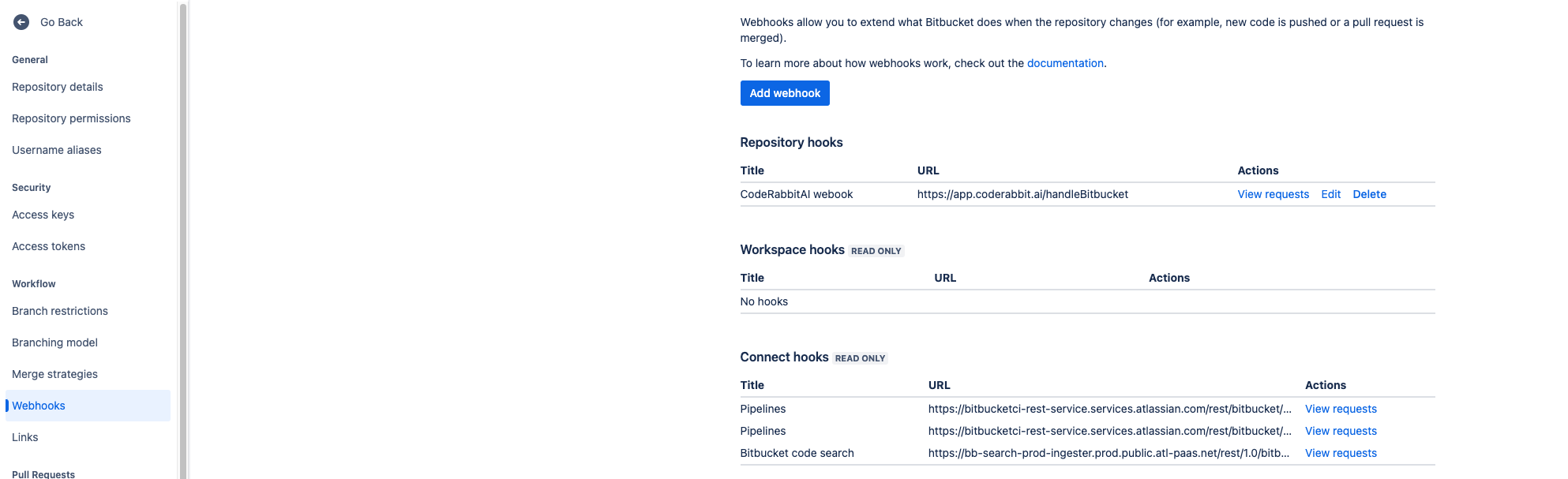
A CodeRabbit webhook in a Bitbucket repository's webhook settings
Add a webhook manually
Add a webhook manually
Add a webhook by hand only if you need to, for example when no repository admin can click Install. A repository installed with Install has its own random secret, which CodeRabbit checks instead of the organization secret. To use a known secret there, rotate it first: Change secret sets the new secret on every installed repository.Reviews run on Created and Updated, and chat commands on Comment created, so those three are the minimum. Approvals, declines, merges, pushes, and build statuses feed Triage and related features. Select all twelve to match Install.
1
Copy the webhook URL
On the Webhook secret page, copy the Webhook URL. Only admins see this page.
2
Save the organization secret
Enter a secret and save it. If a secret already exists and you don’t have it, set a new one with Change secret; see Rotate the webhook secret.
3
Add the webhook in Bitbucket
In the repository, go to Repository settings → Webhooks → Add webhook. Only repository admins can add webhooks. Paste the URL, enter the same secret, and select the triggers in the table below.
Rotate the webhook secret
On Account → Webhook secret, click Change secret and save the new secret. CodeRabbit then updates every webhook with the CodeRabbit URL on installed repositories, together with their stored secrets. It makes the changes with your Bitbucket login and reports how many repositories it updated and how many failed. For each failed repository, and for webhooks on repositories CodeRabbit hasn’t installed, update the secret in Bitbucket under Repository settings → Webhooks.IP allowlist
If your workspace restricts access by IP address (Workspace settings → Access Management → Access controls → Restrict access to certain IP addresses, a Bitbucket Premium feature), add CodeRabbit’s IP addresses there:Troubleshooting
Most fixes below need a Bitbucket workspace admin, who is also a CodeRabbit admin. If onboarding shows Admin Access Required, ask one. Installing needs Admin permission on the repository. If one pull request wasn’t reviewed for a reason unrelated to Bitbucket setup, such as its draft status, its target branch, or review seats, see Automatic review controls and Seat assignment.Credentials can't be saved
Credentials can't be saved
To test an email and token outside CodeRabbit, run the request CodeRabbit makes, and enter the API token when curl asks for a password:
uuid field means the email and token work.Install fails
Install fails
An error that includes
Give it admin access to the repository or Give that account admin access to the repository, and make sure its credential includes the webhook scope means the account creating the webhook lacks Admin permission on that repository. CodeRabbit creates webhooks with the Bitbucket login of whoever clicks Install, so ask a repository admin to install it, or get Admin permission first.Reviews stopped
Reviews stopped
- On every repository: the service account’s API token has most likely expired or been revoked. When Bitbucket rejects the token, the CodeRabbit app shows “Bitbucket needs its credentials updated.” with a Fix connection link, and if it keeps failing, CodeRabbit emails a billing admin. Nothing is posted on pull requests. Create a new token and save it, as described in Replace the token or service account.
- On one repository, or a new one: check that the service account still has access to it. Then, in Bitbucket, check Repository settings → Webhooks for a webhook with the CodeRabbit URL. If it’s missing, select the repository on the Connected repositories page and click Uninstall, then Install.
- After turning on IP allowlisting: add CodeRabbit’s addresses, as described in IP allowlist.
One person's pull requests are never reviewed
One person's pull requests are never reviewed
CodeRabbit doesn’t review pull requests opened by the account whose token is saved, and says “This PR was authored by the user configured for CodeRabbit reviews.” If CodeRabbit’s reviews appear under that person’s name, the saved token is theirs. Switch to a dedicated service account.
Webhook deliveries are rejected
Webhook deliveries are rejected
The secret on the Bitbucket webhook doesn’t match the one CodeRabbit uses: the repository’s own secret if one is stored, otherwise the organization secret on the Webhook secret page. For an installed repository, rotate the webhook secret, which also updates webhooks you added by hand with the CodeRabbit URL, or click Uninstall, then Install. For a repository without its own secret, set the organization secret on the webhook in Bitbucket.
What’s next
Configure CodeRabbit
Tune how CodeRabbit reviews each repository with a
.coderabbit.yaml file.Automatic review controls
Choose which pull requests CodeRabbit reviews automatically, by target branch, draft status, label, or title.
Manage code reviews
Pause, resume, or request reviews from pull request comments with
@coderabbitai commands.